
Getting started
Add your folders
Tell PDF Search where your documents are. Click Add Folder in the Documents tab (or choose Index › Add Search Folder, ⌃⌘A) and pick a folder on your Mac, an external drive or iCloud Drive. Every supported document inside it, including its subfolders, is indexed and becomes searchable. Add as many folders as you like.
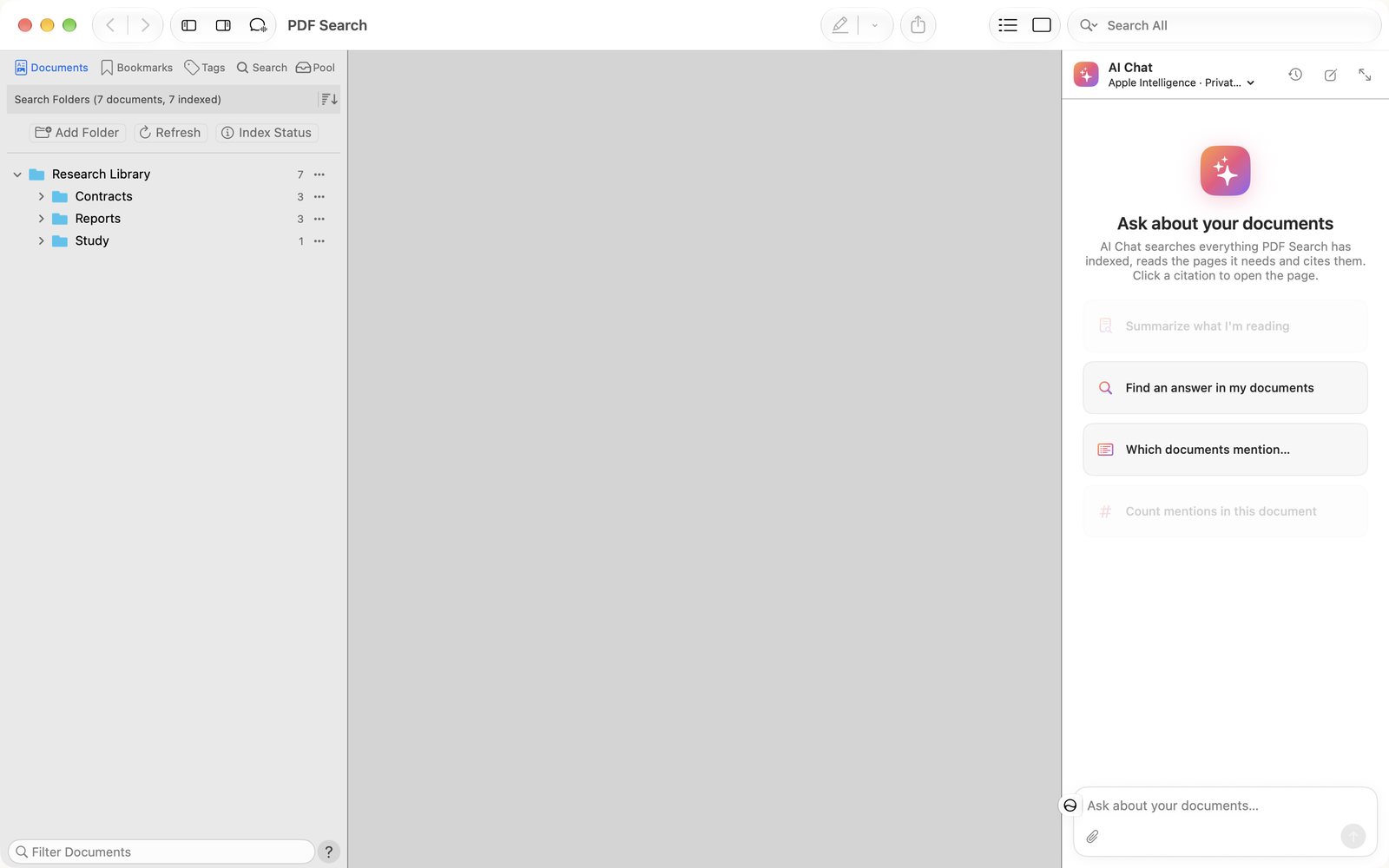
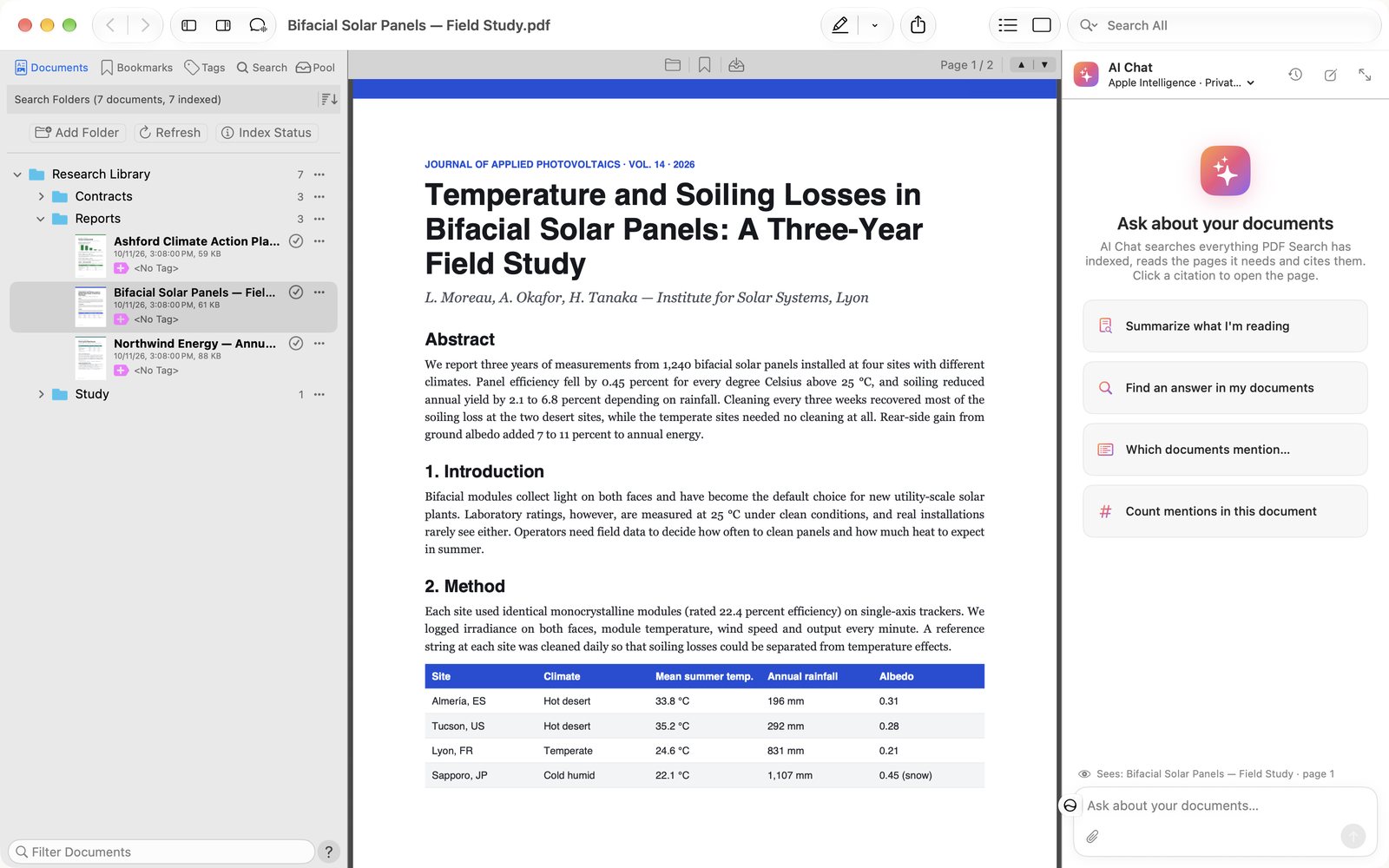
The window has three parts: the sidebar on the left (Documents, Bookmarks, Tags, Search results), the reader in the middle, and AI Chat on the right. Use the toolbar buttons to show or hide the sidebar and AI Chat.
Supported documents
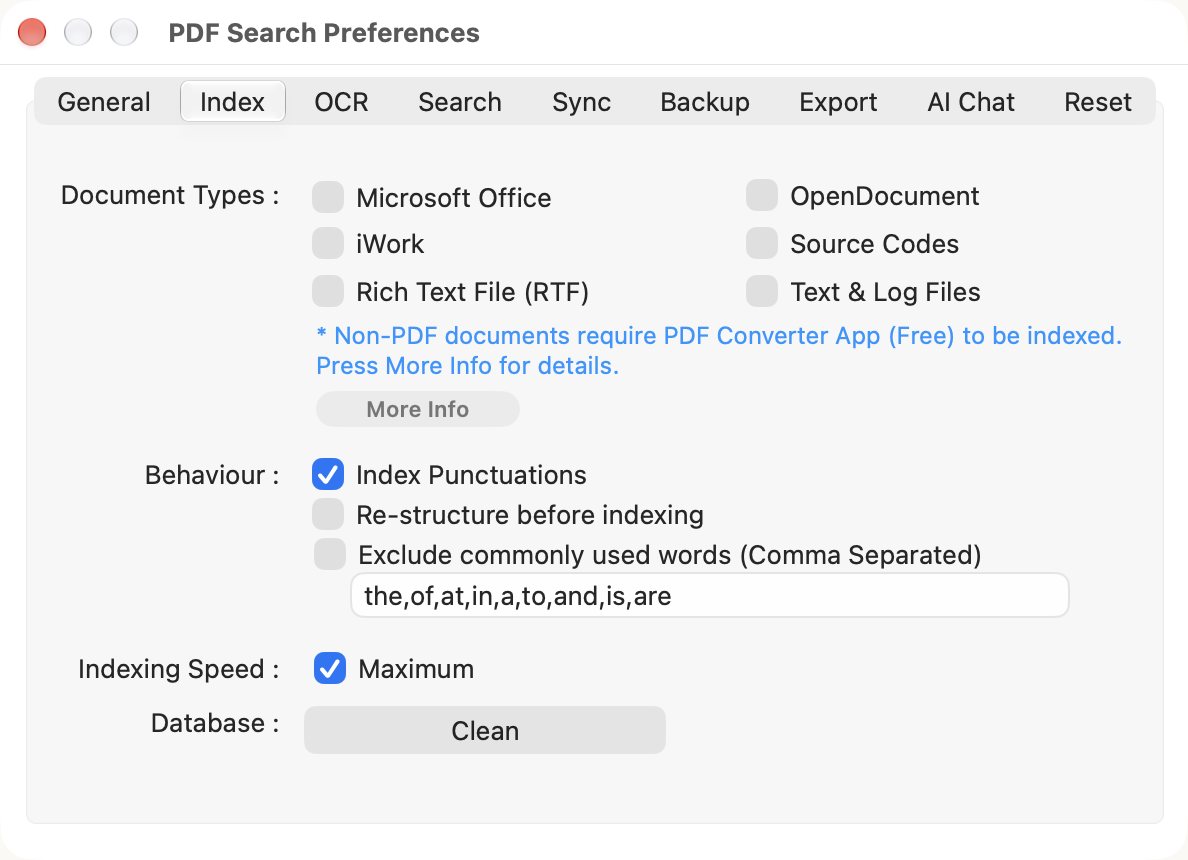
PDF is always indexed. In Settings › Index you can also turn on Microsoft Office (Word, PowerPoint), iWork (Pages, Keynote), OpenDocument, Rich Text, source code, and text and log files. Non-PDF documents are converted to PDF inside PDF Search itself, keeping their pictures, tables, headers, footers and slide designs, then indexed and shown like any other PDF. No other app is needed.
Indexing
How indexing works
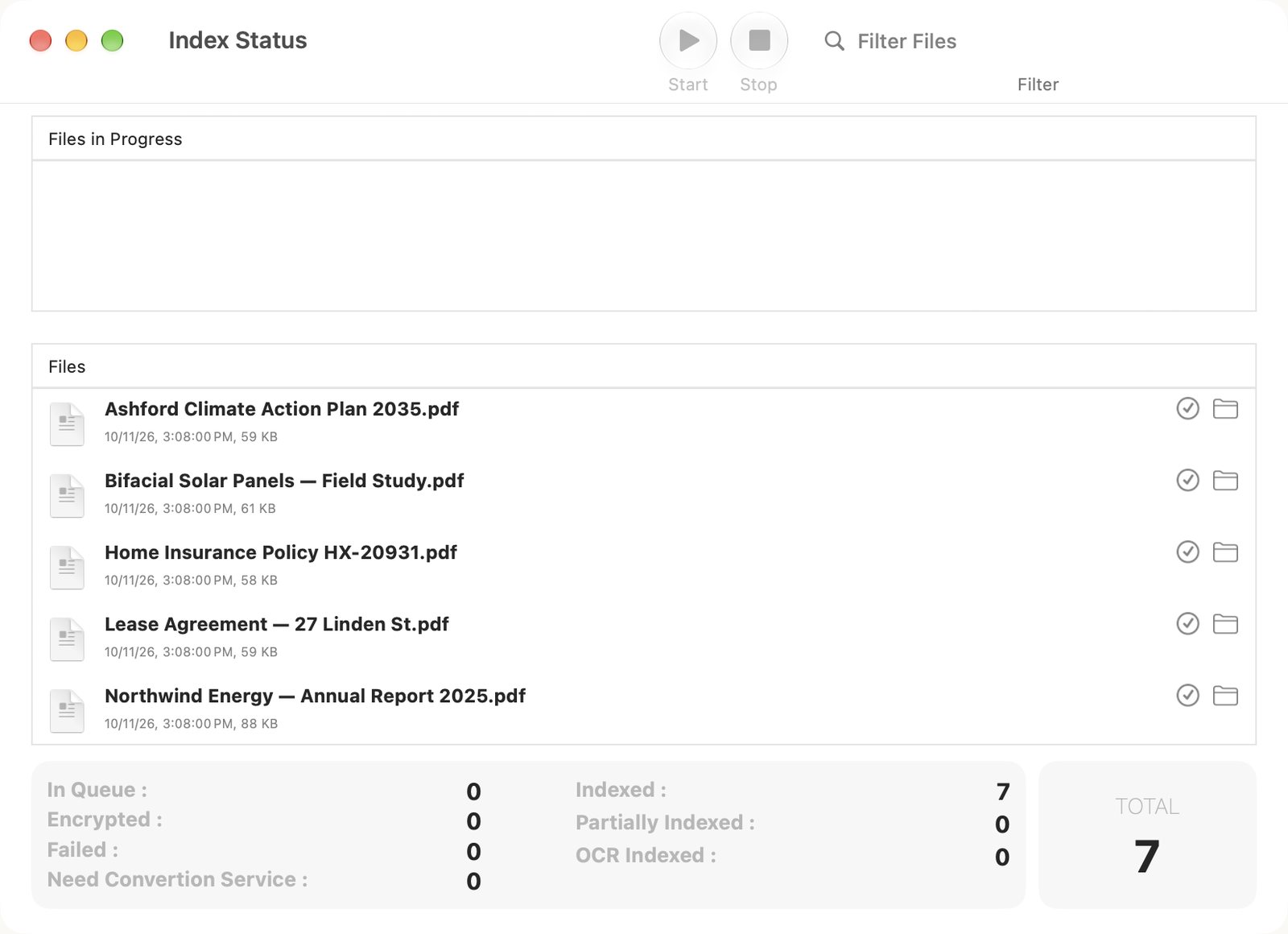
PDF Search reads every word of every document once and stores it in its index, so later searches take seconds. Indexing runs in the background while PDF Search is open; it is a one-time job per document, and new or changed documents are picked up automatically. On a MacBook, plug in while a large library is indexed for the first time.
The header of the Documents tab shows how many documents are indexed and how many are still in the queue. Click Index Status to see every document, pause or resume indexing (Start / Stop), filter the list and find documents that failed, are encrypted or could not be converted.
Text recognition (OCR)
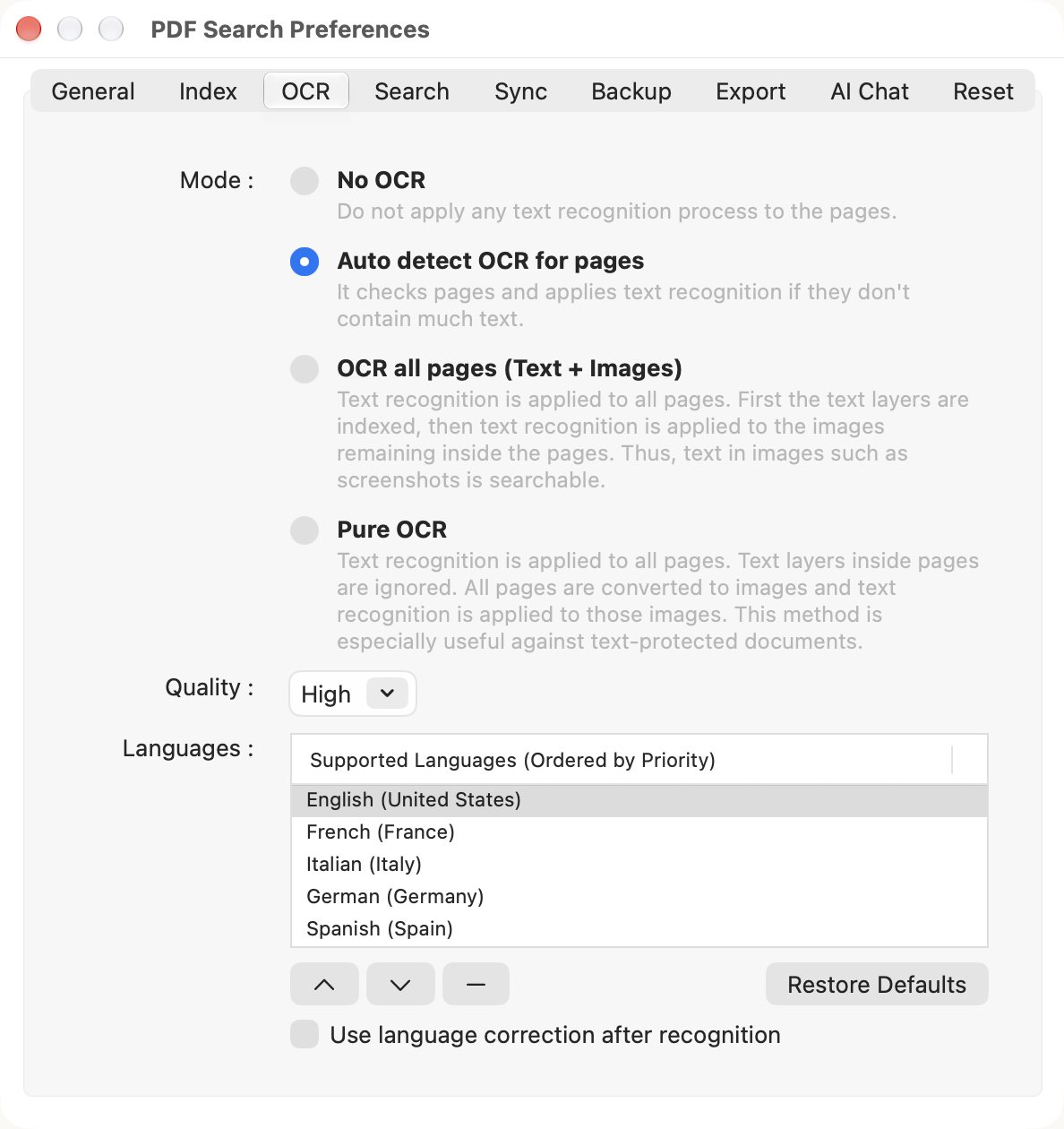
Scanned pages and pictures of text have no text layer. PDF Search reads them on your Mac with text recognition and indexes the words like any other text. Choose how in Settings › OCR:
- Auto detect OCR for pages (default) — pages with little or no text are recognized.
- OCR all pages (Text + Images) — the text layer is indexed, then the images on every page are read too, so text inside screenshots and figures is searchable.
- Pure OCR — every page is treated as an image; useful for text-protected documents.
- No OCR — only the text layer is indexed.
Set the recognition quality and the languages in priority order. Searching text found by OCR is a PRO feature.
Index database
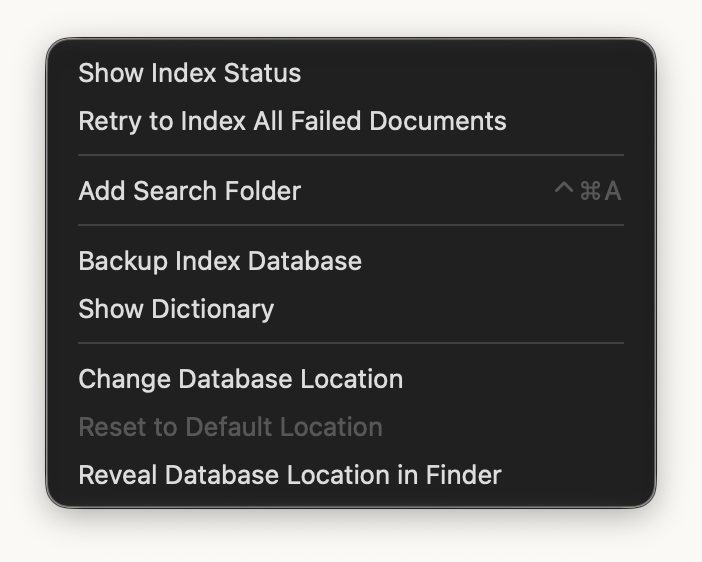
The Index menu has everything for the index itself: show the index status, retry failed documents, back up the index, show the dictionary of indexed words, and move the database to another disk (for example an external drive) with Change Database Location.
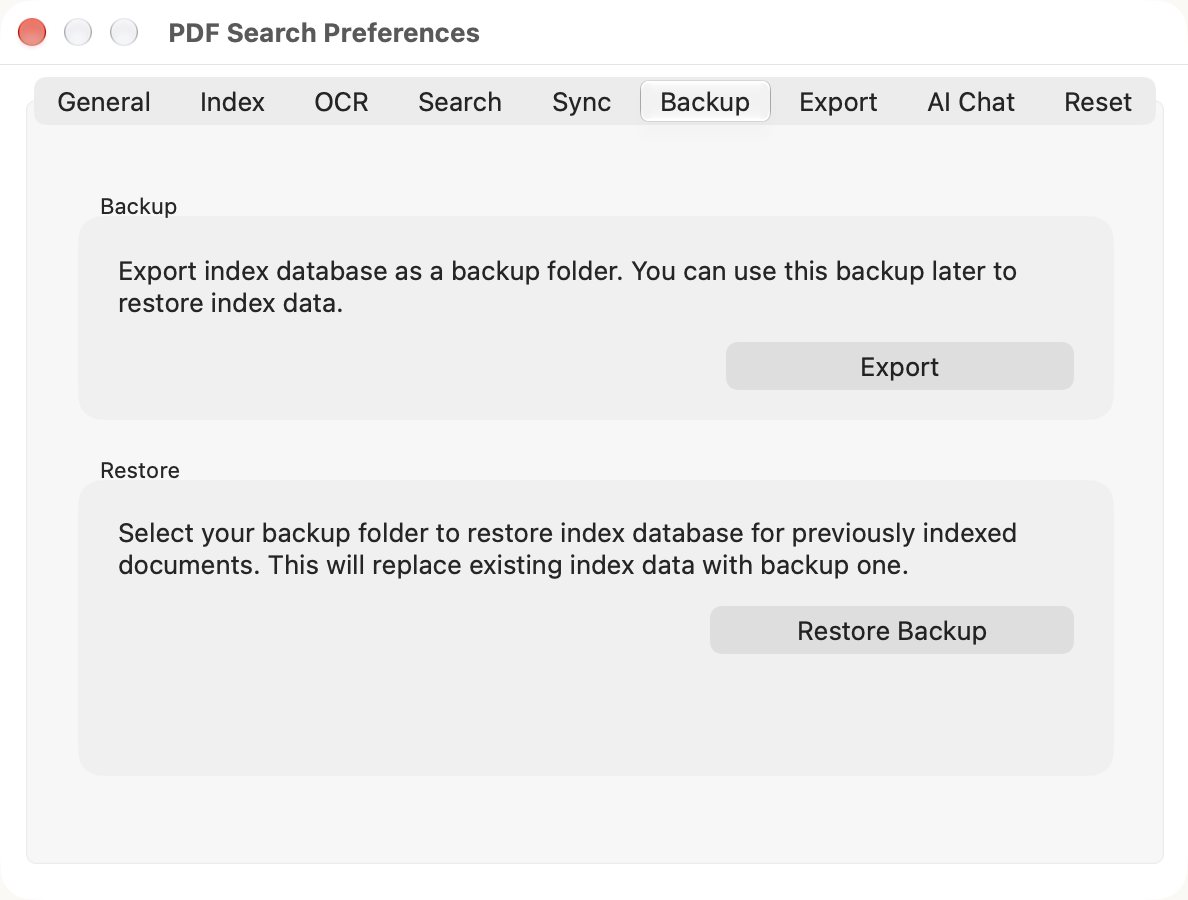
Indexing a big library takes time, so back it up: Settings › Backup › Export saves the index to a folder, and Restore Backup brings it back after you reinstall your Mac. Settings › Reset deletes the index and all settings and starts from scratch.
Search
Start a search
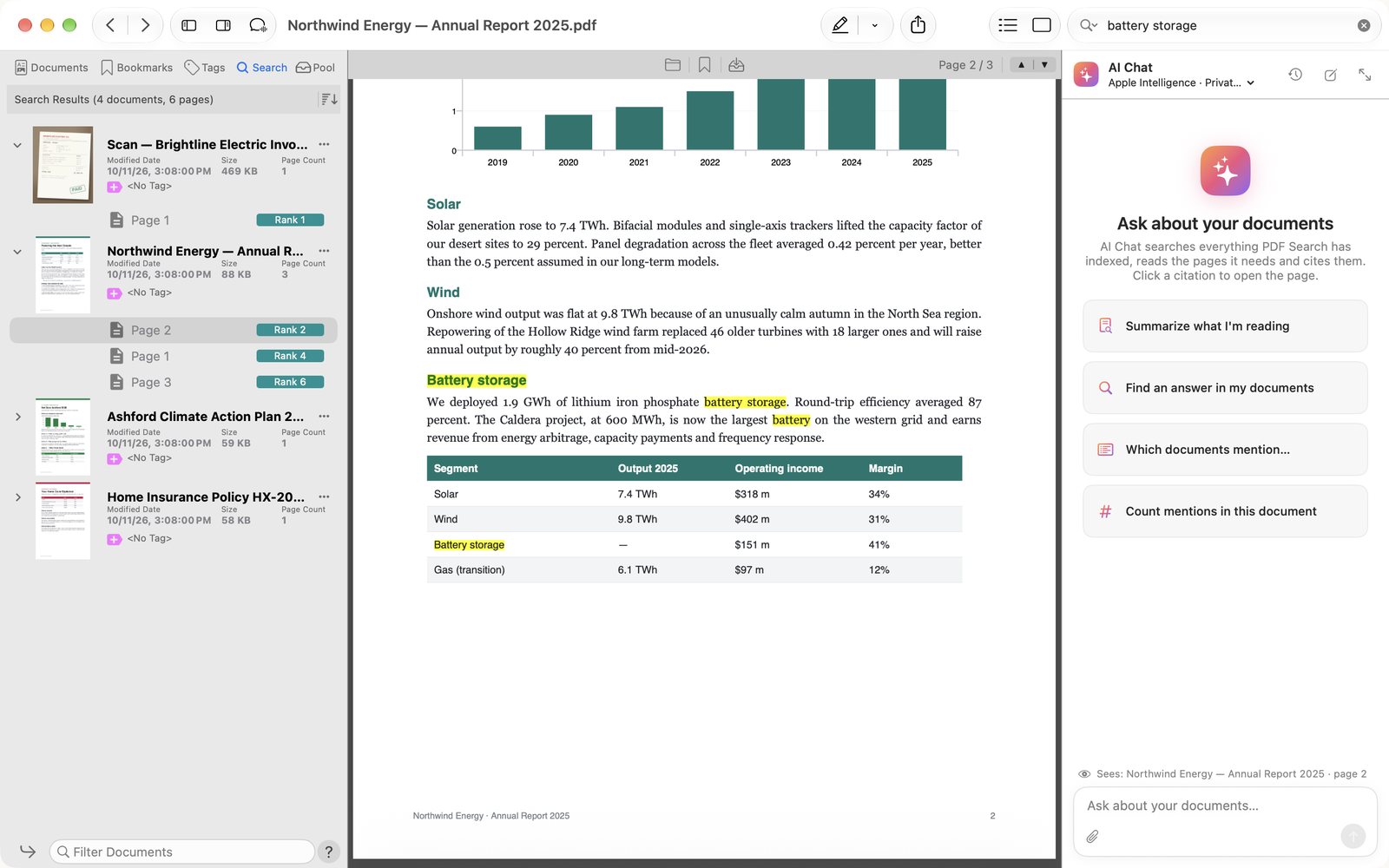
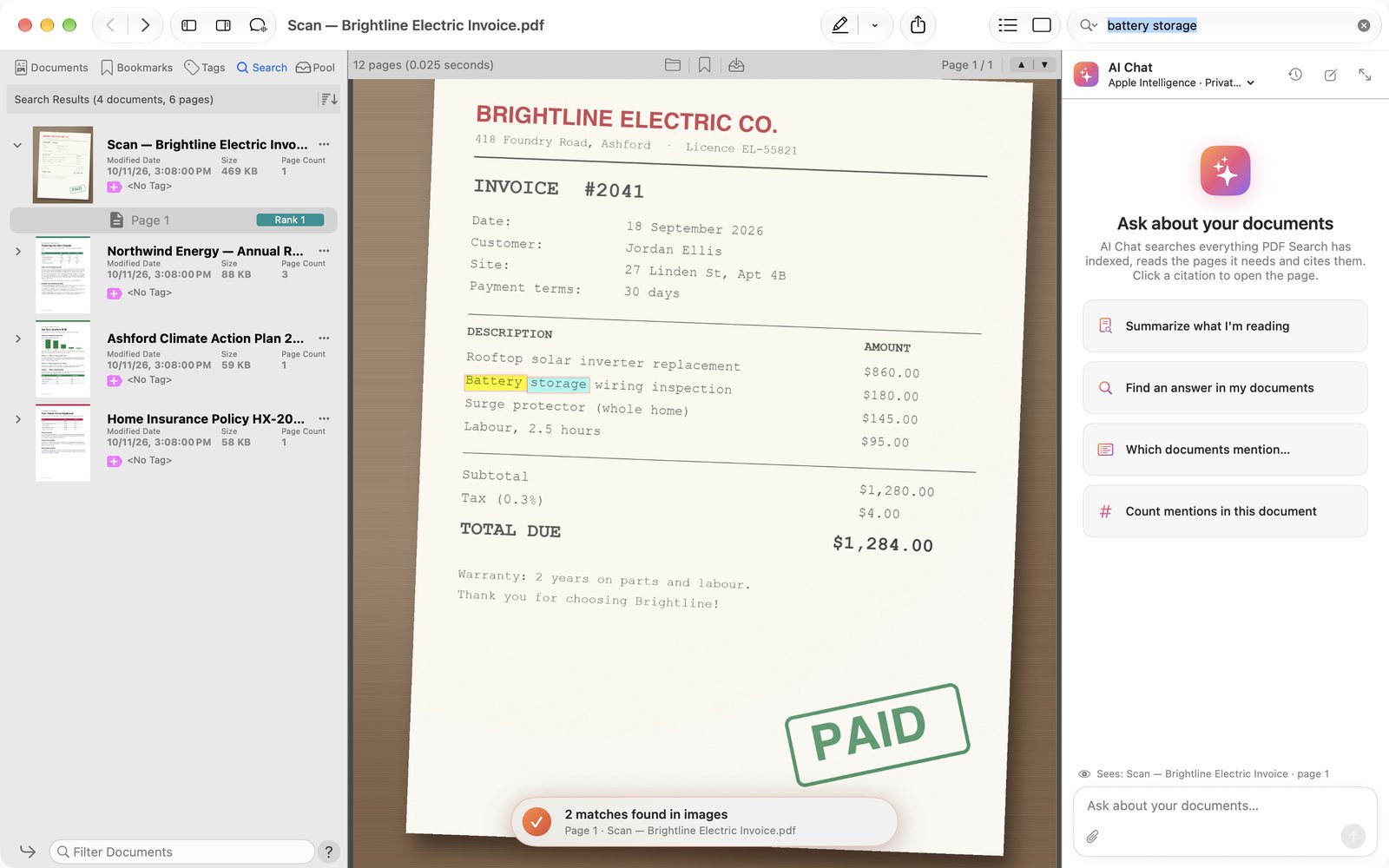
Type your words in the search field at the top right and press Return. While a large library is ranked, a card shows the progress. The results open in the Search tab, grouped by document, with every matching page and its rank; the best page opens in the reader with your words highlighted. Click any page to jump to it, and use the arrows above the reader to step through the hits.
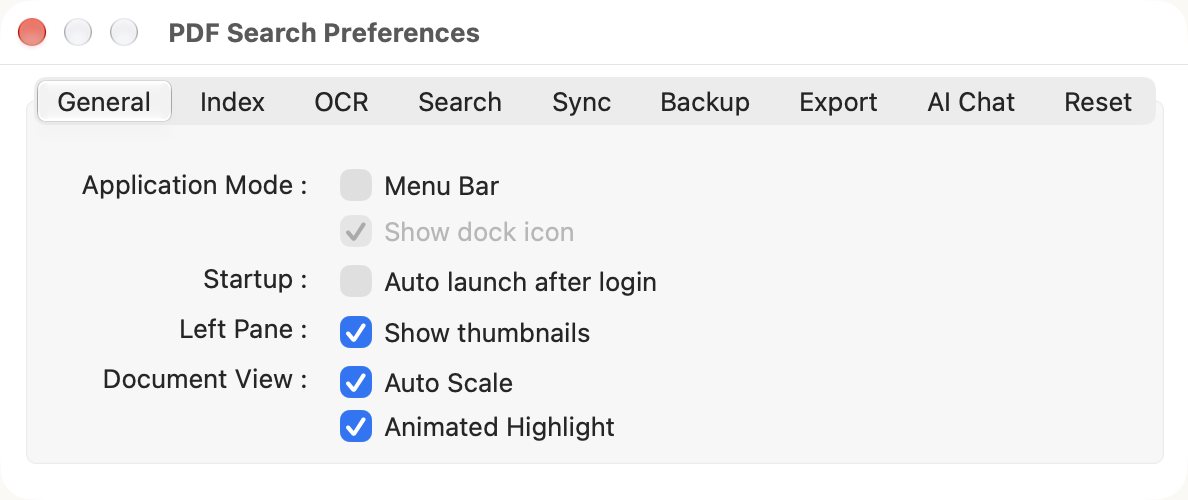
You can also search from any app: set a keyboard shortcut in Settings › Search, or turn on Menu Bar mode in Settings › General to search from the menu bar.
How results are ranked
PDF Search scores every page, not just every document:
- Closeness — pages where your words sit close together rank higher.
- Frequency — pages with more of your words rank higher.
- Emphasis — words in a title, in bold or in a larger font count for more.
- Date — when everything else is equal, newer documents come first.
Words inside images
When a hit is inside an image, PDF Search scans that page in front of you and highlights the words on the picture. A capsule under the page shows the progress and how many matches were found.
Search patterns
| Pattern | Example | Finds |
|---|---|---|
| Quotes | "early termination" | Only pages with these words together, in this order. |
| Several words | early termination | Pages with either word; pages with both rank first. |
| Plus | lease +notice | Pages that must contain notice. |
| Minus | battery -insurance | Pages with battery but without insurance. |
| Wildcard | therm*, *ity, pr*t | Words starting with, ending with, or starting and ending with these letters. |
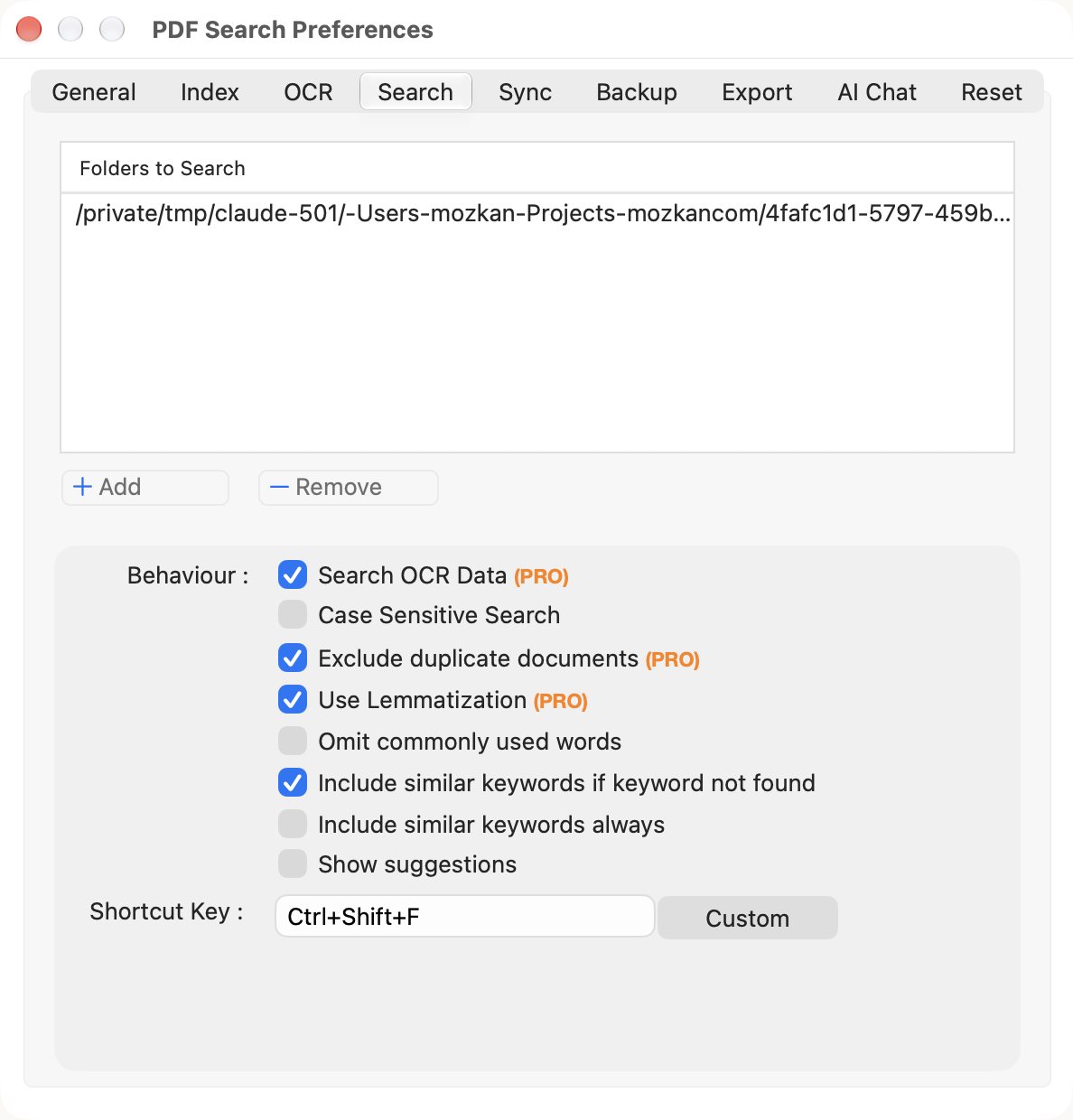
In Settings › Search you can also turn on word forms (lemmatization: panel finds panels), similar words when nothing is found, case-sensitive search, skipping duplicate documents and search suggestions.
Narrow the search
By folder
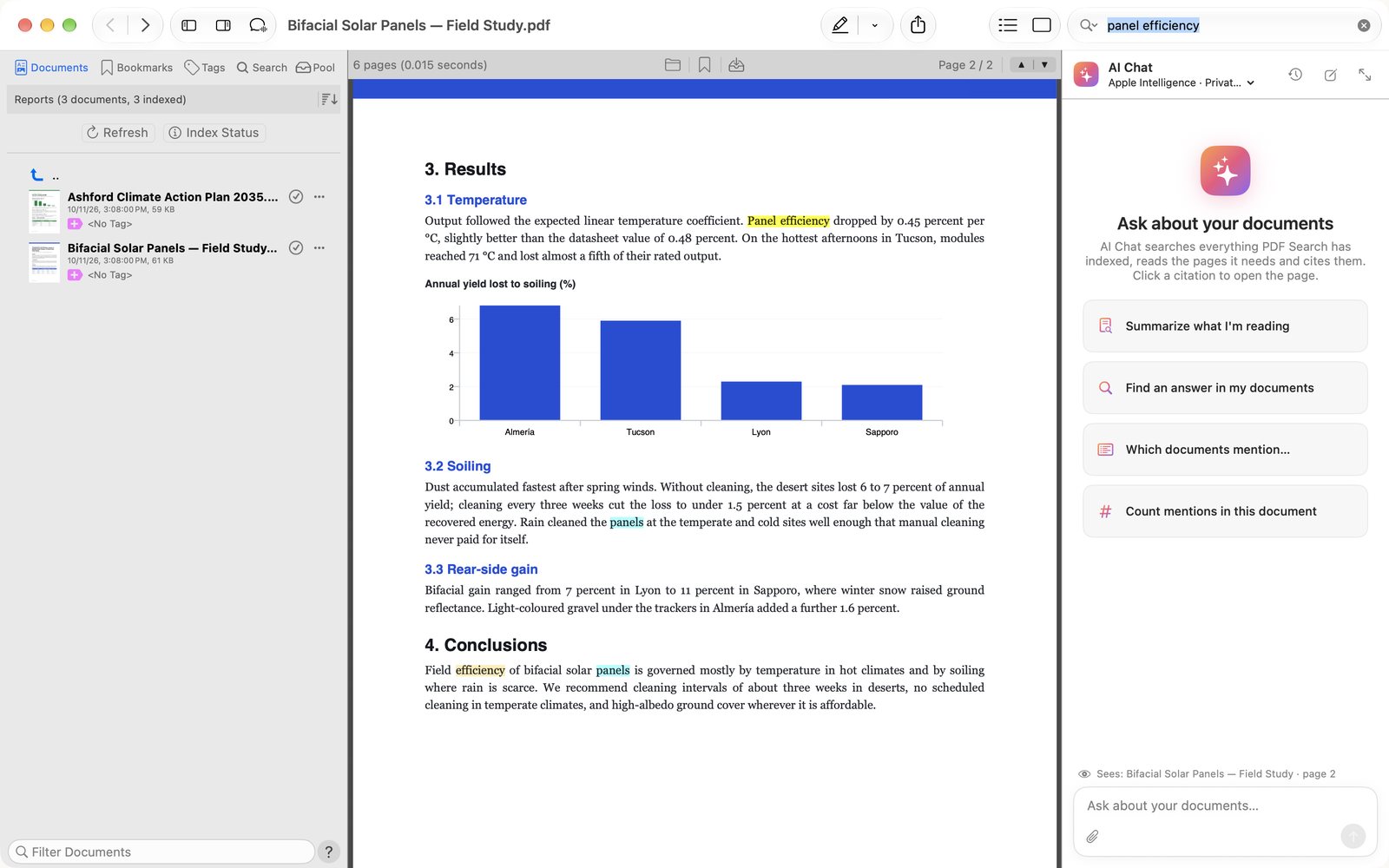
Double-click a folder in the Documents tab to open it; the header shows the folder's name and searches now cover only that folder. Click .. to go back up.
By name or path
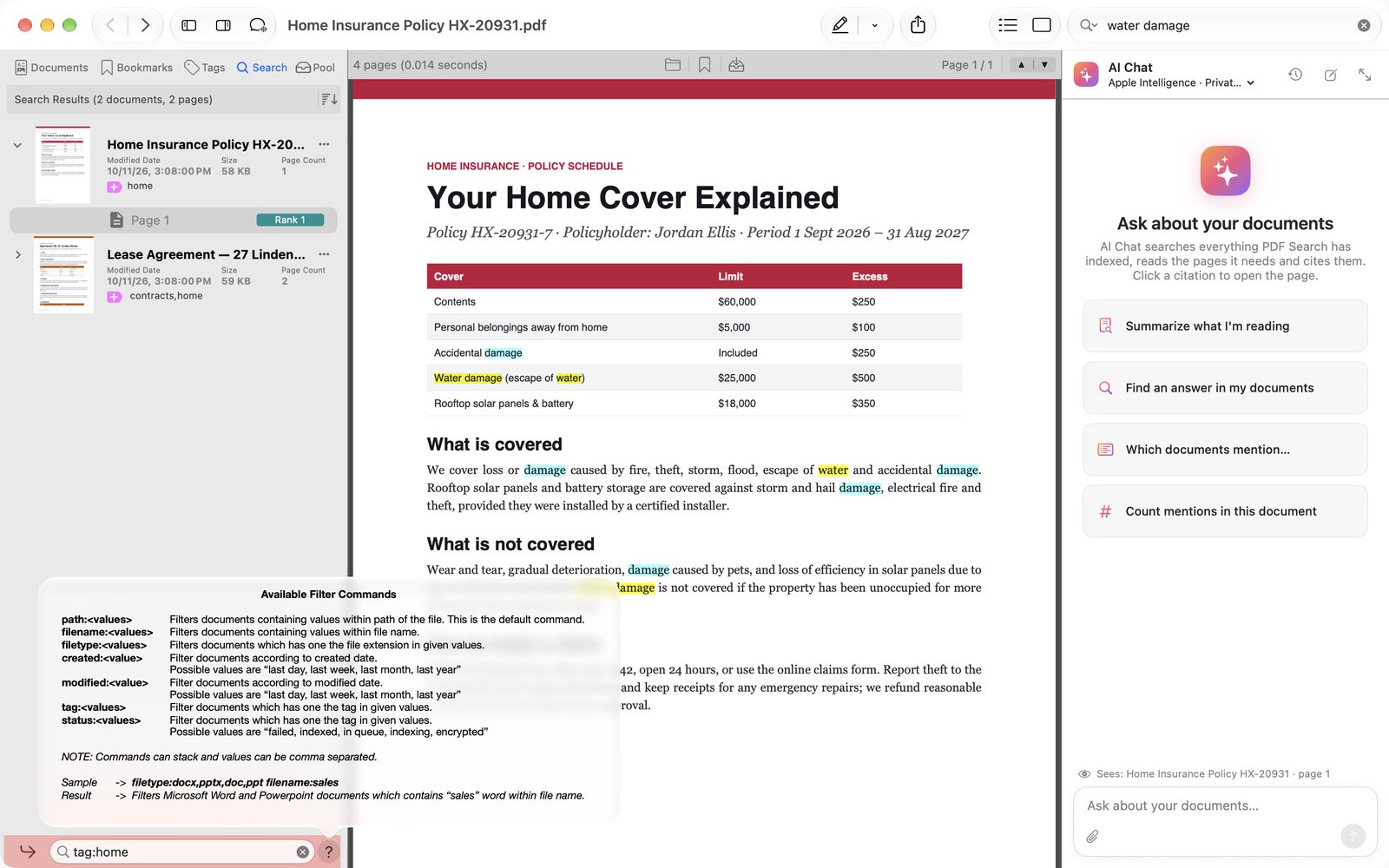
Type in the Filter Documents field at the bottom of the sidebar and press Return: only documents whose path or file name contains the text stay in the list, and searches cover only them.
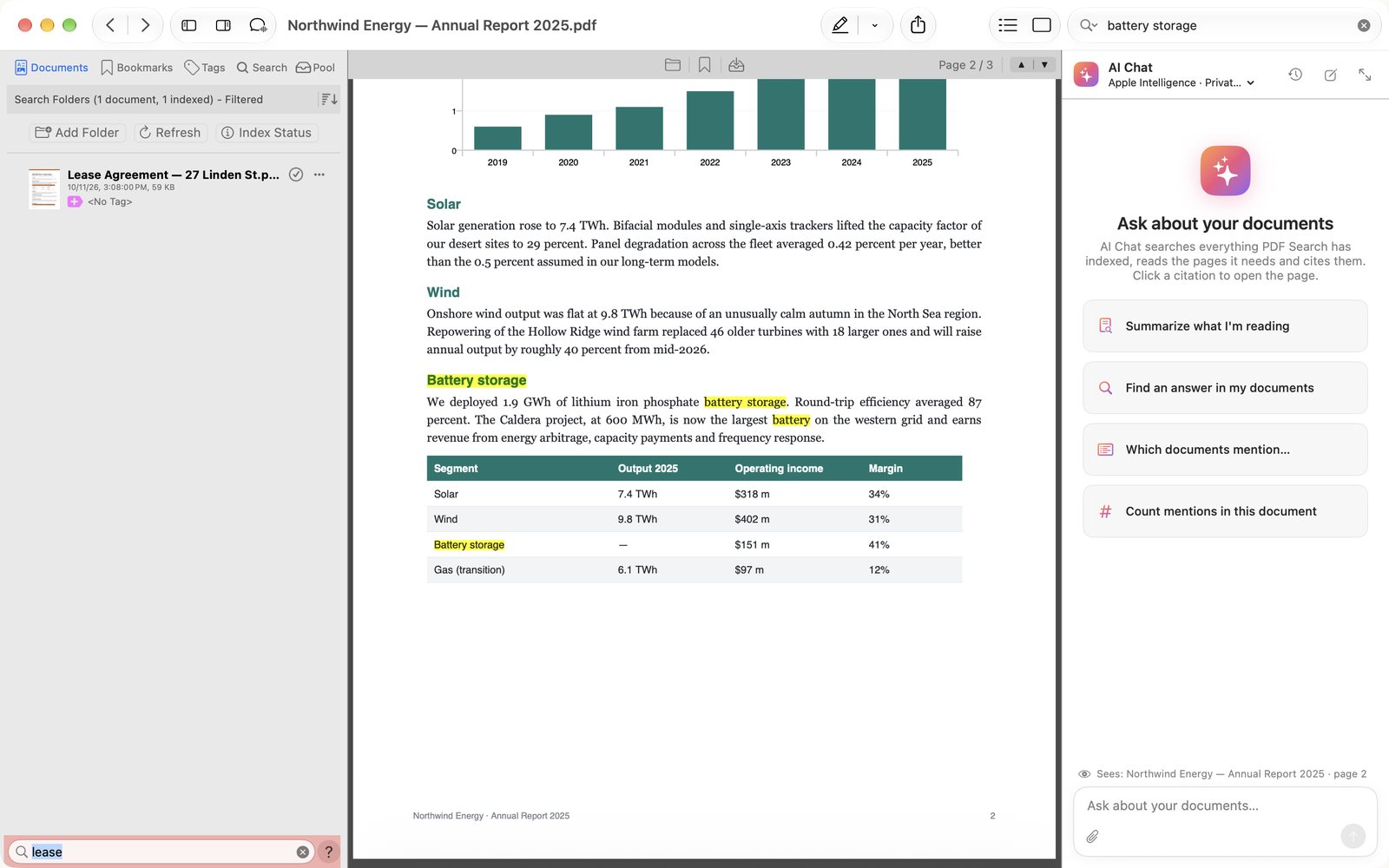
The field understands commands too. Click ? next to it for the list: filename:, filetype:, created:, modified:, tag: and status:, which can be combined.
By tag
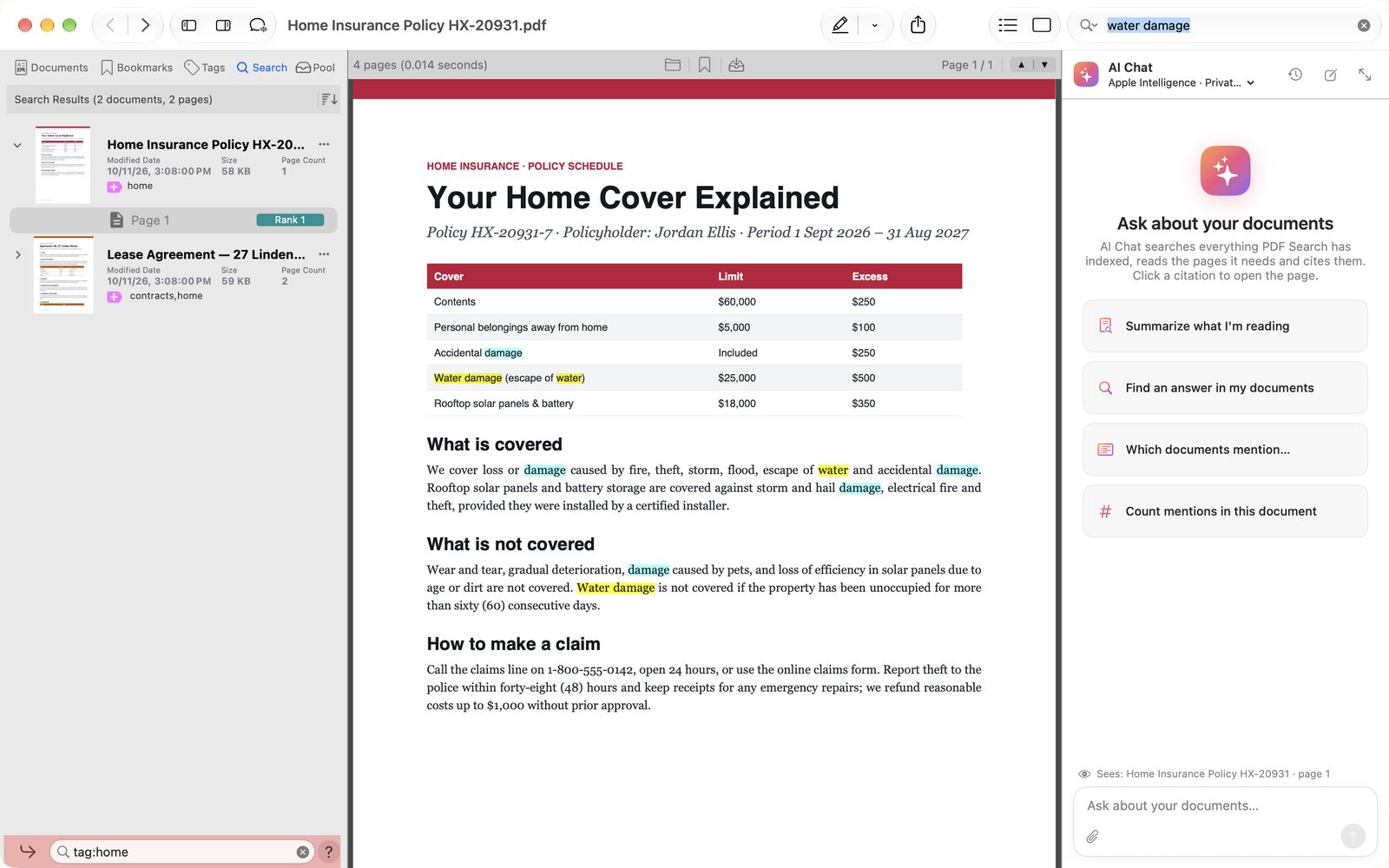
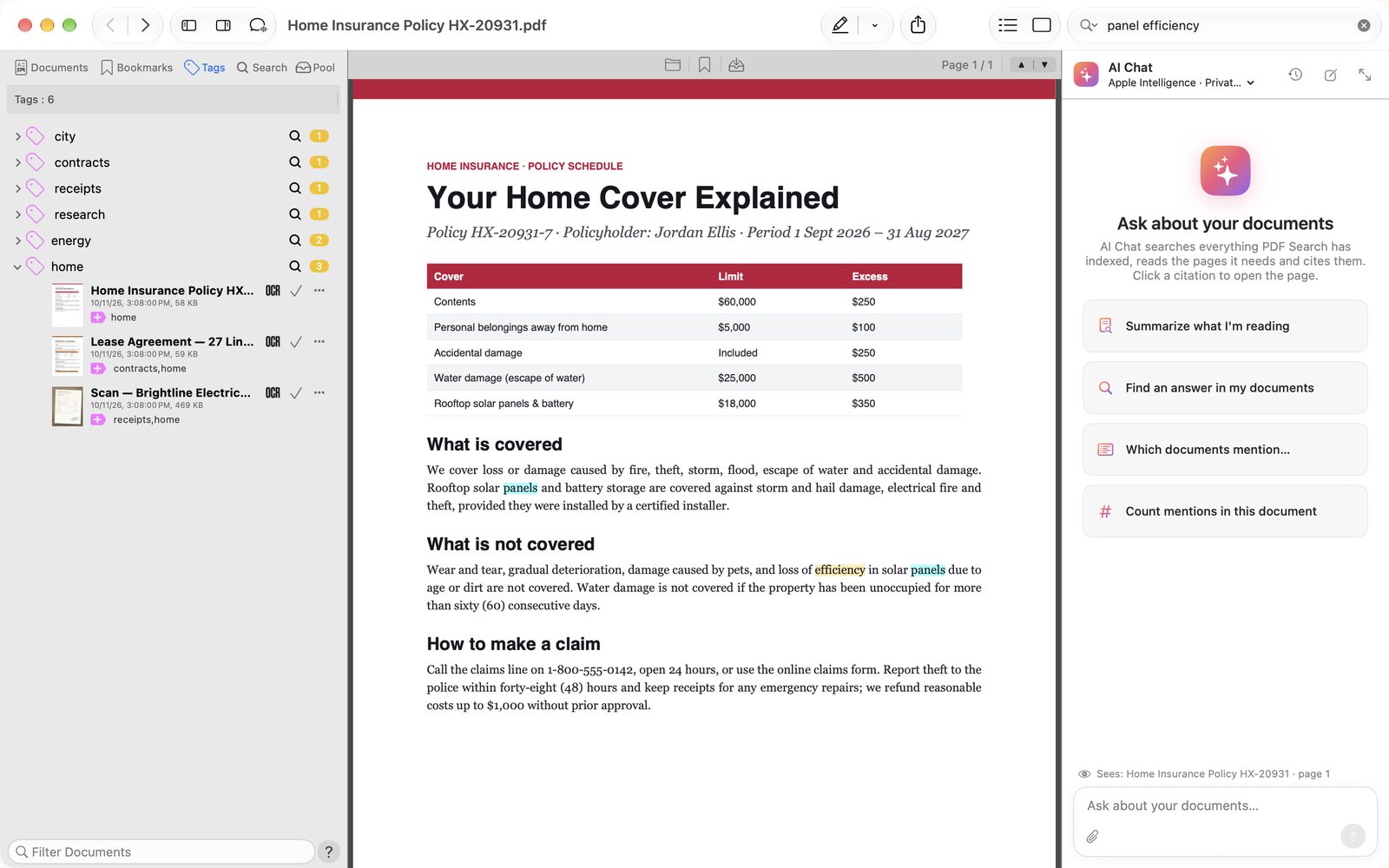
Click the magnifier next to a tag in the Tags tab (or type tag:home in the filter field) to search only the documents with that tag.
Export and share
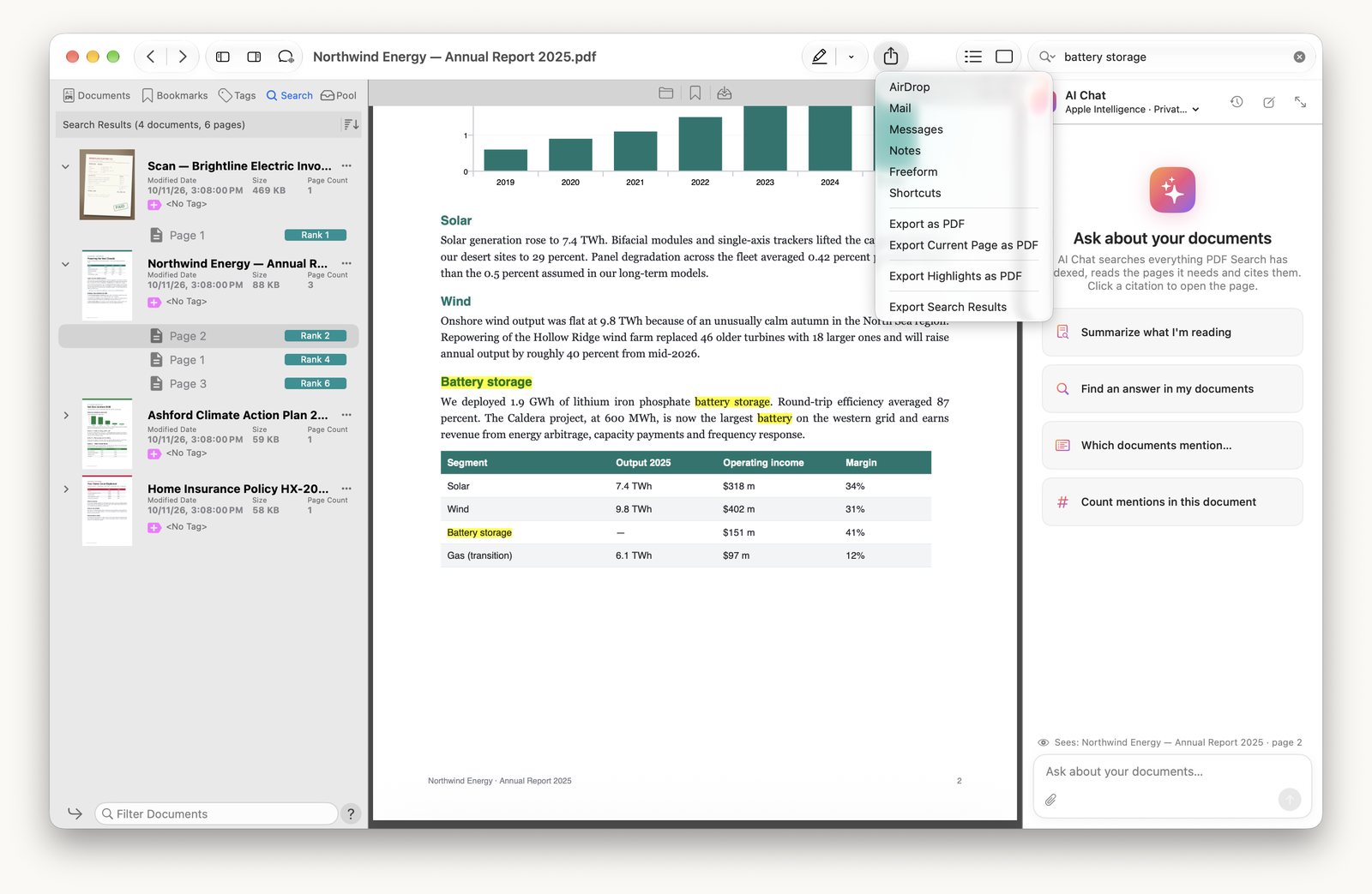
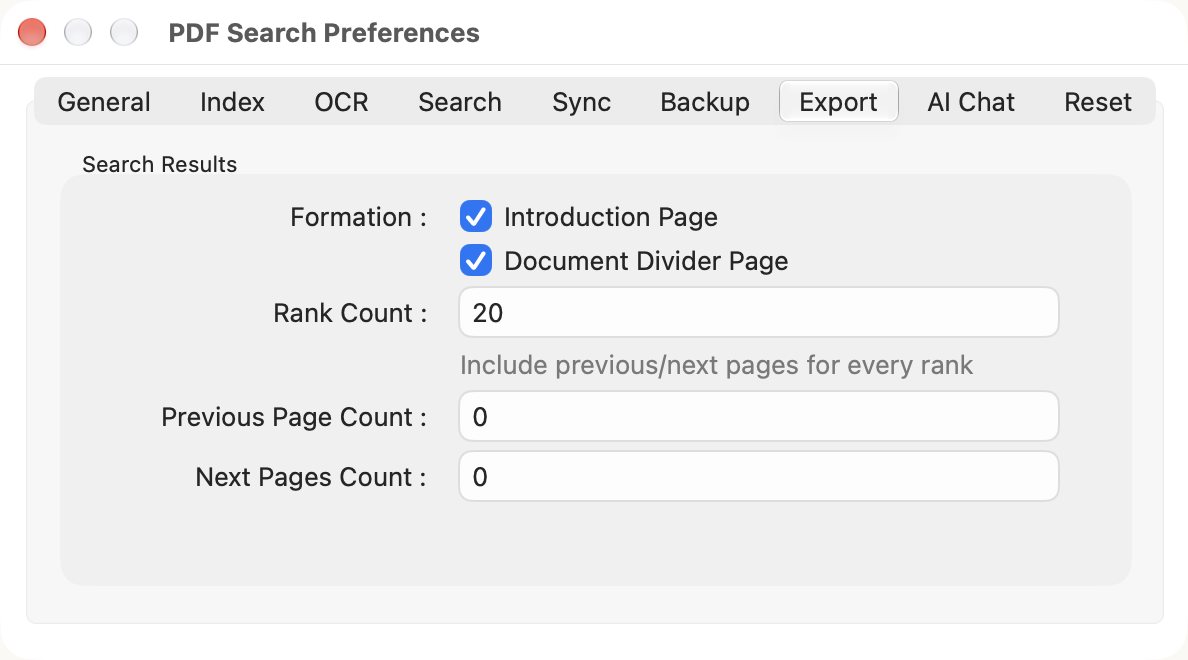
The share button in the toolbar shares the document, exports it or the current page as PDF, exports your highlights, and Export Search Results turns the best pages of every result into one new PDF, sorted by rank. Choose what goes into it (introduction page, document dividers, number of ranks, pages before and after each hit) in Settings › Export.
AI Chat
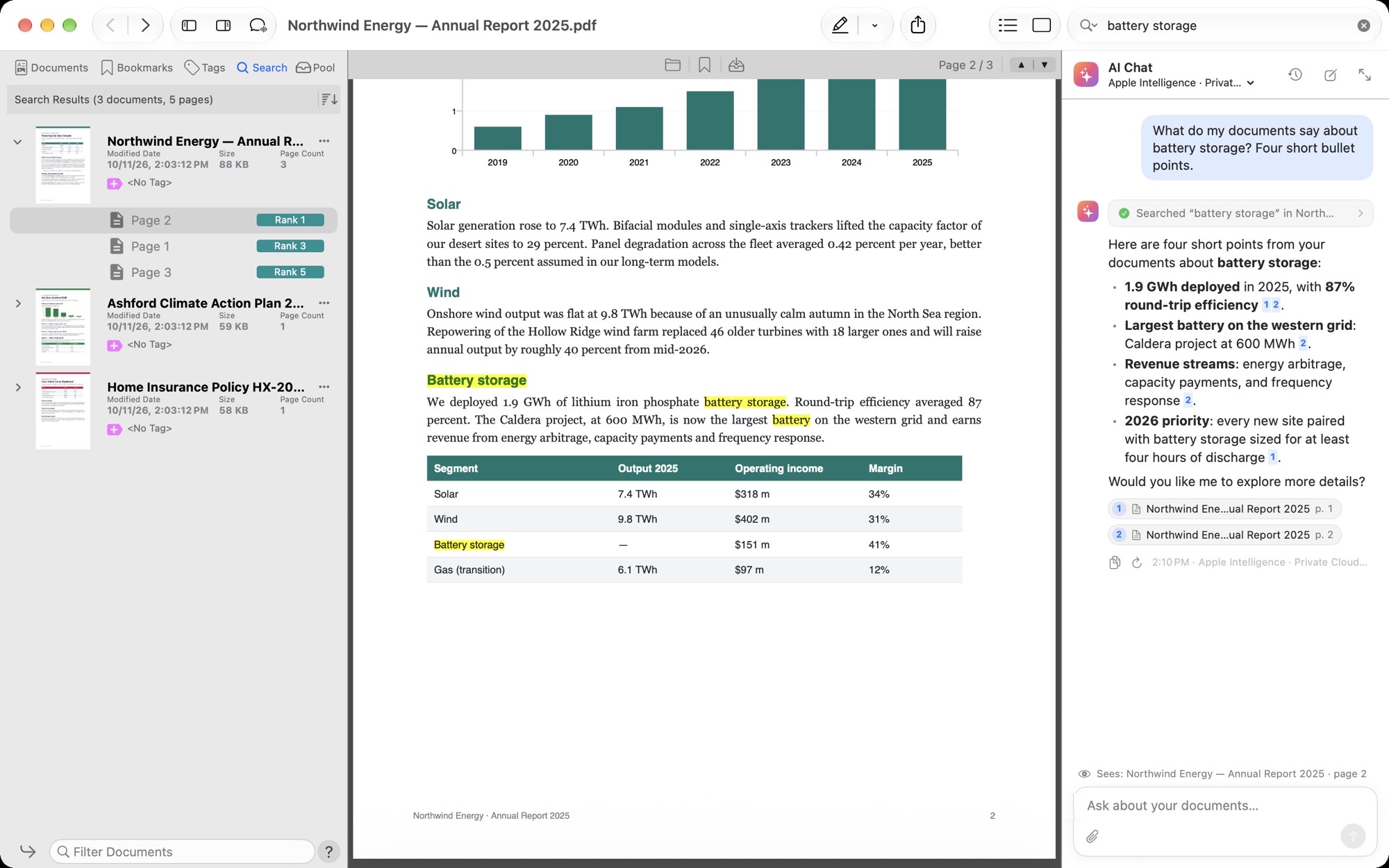
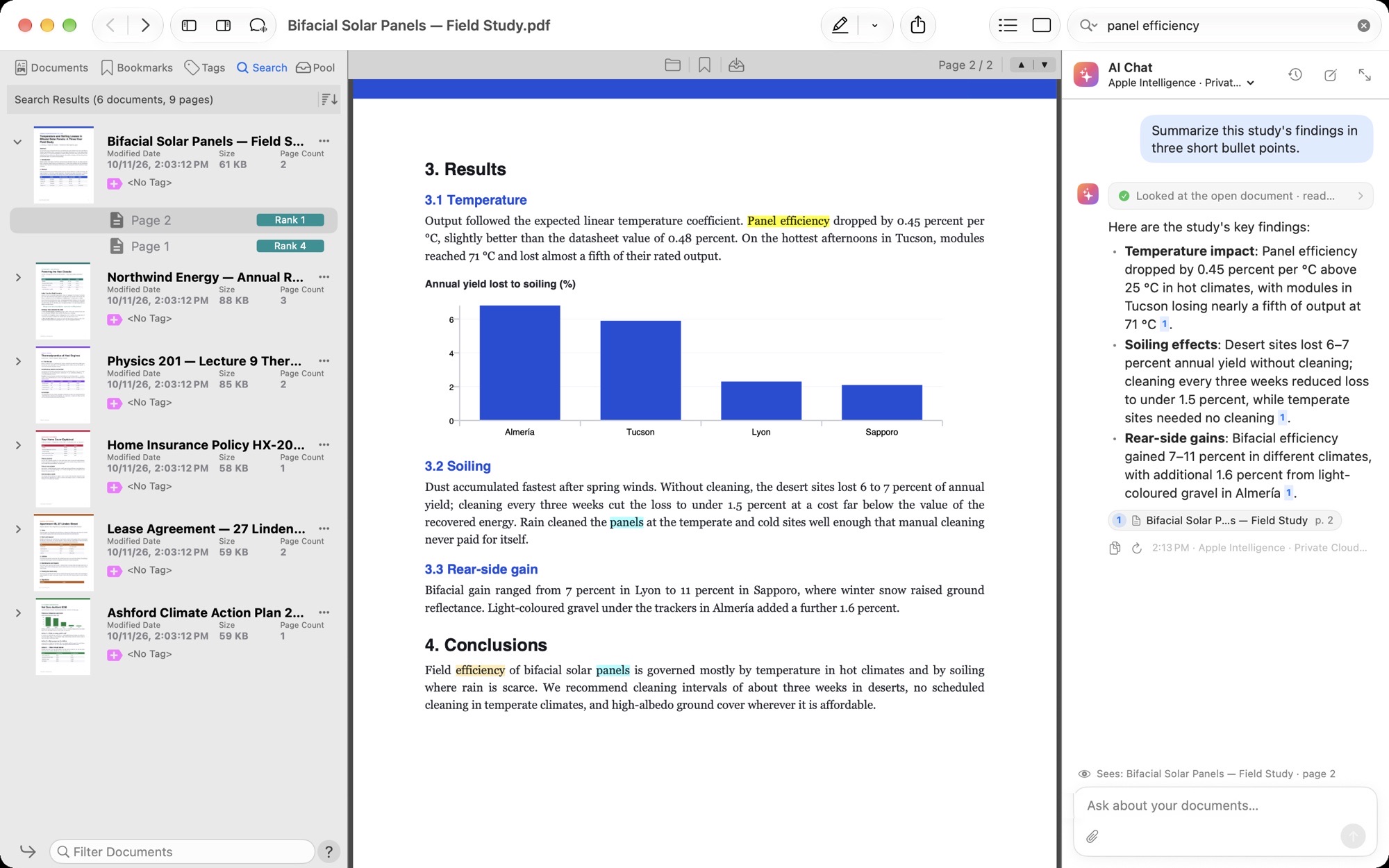
AI Chat is the panel on the right of the window. Ask a question in plain words; it searches your indexed documents with PDF Search’s own ranking, reads the pages it needs and answers with numbered sources. Click a number, or a source under the answer, and the document opens on that page.
Asking
- Ask about your whole library (“What do my documents say about battery storage?”) or about what you are reading (“Summarize this document”). There is nothing to select first: AI Chat looks at the open document and page when the question is about them, and searches the library otherwise. The line above the message field shows what it can see.
- Every step is listed under the answer: the searches it ran and the pages it read. Scanned pages are read with text recognition.
- Paste or drop an image into the message box to ask about it.
- Return sends, Shift-Return starts a new line. Use the clock button for earlier conversations, the pencil button for a new one and the arrows to widen the panel.
Choosing the AI
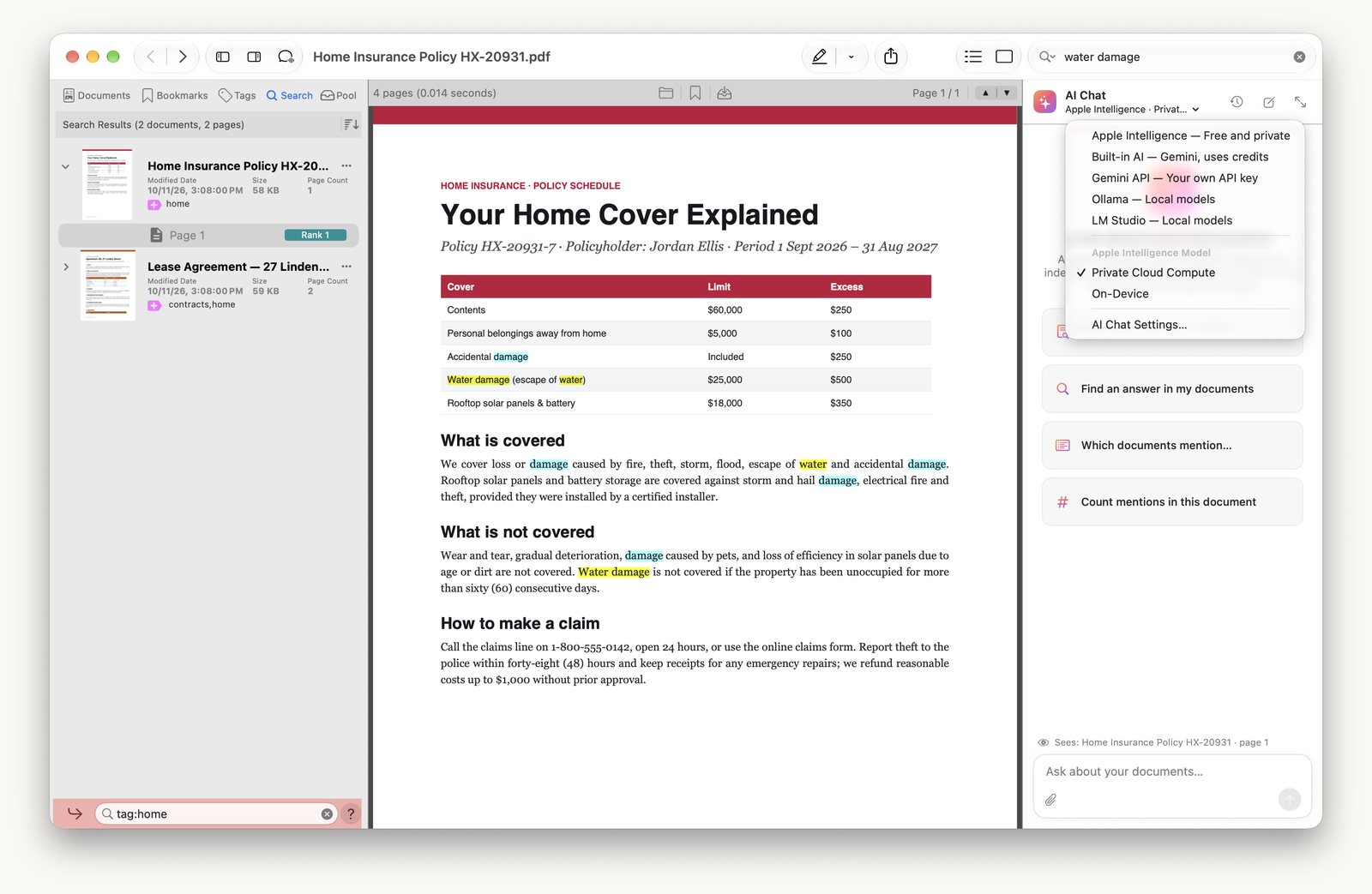
Click the name under “AI Chat” to switch:
- Apple Intelligence — free and private, on Macs that support Apple Intelligence (macOS 26 or later). On macOS 27 it uses Apple’s Private Cloud Compute by default; choose On-Device in the same menu to keep everything on your Mac.
- Built-in AI — works on any Mac and uses credits. The balance is shown in the panel header; credit packs are sold in the app.
- Gemini API — your own Google Gemini API key, entered in Settings › AI Chat.
- Ollama or LM Studio — local models; start the app and load a model first. Nothing leaves your Mac. Models without tool support get a search for your question instead.
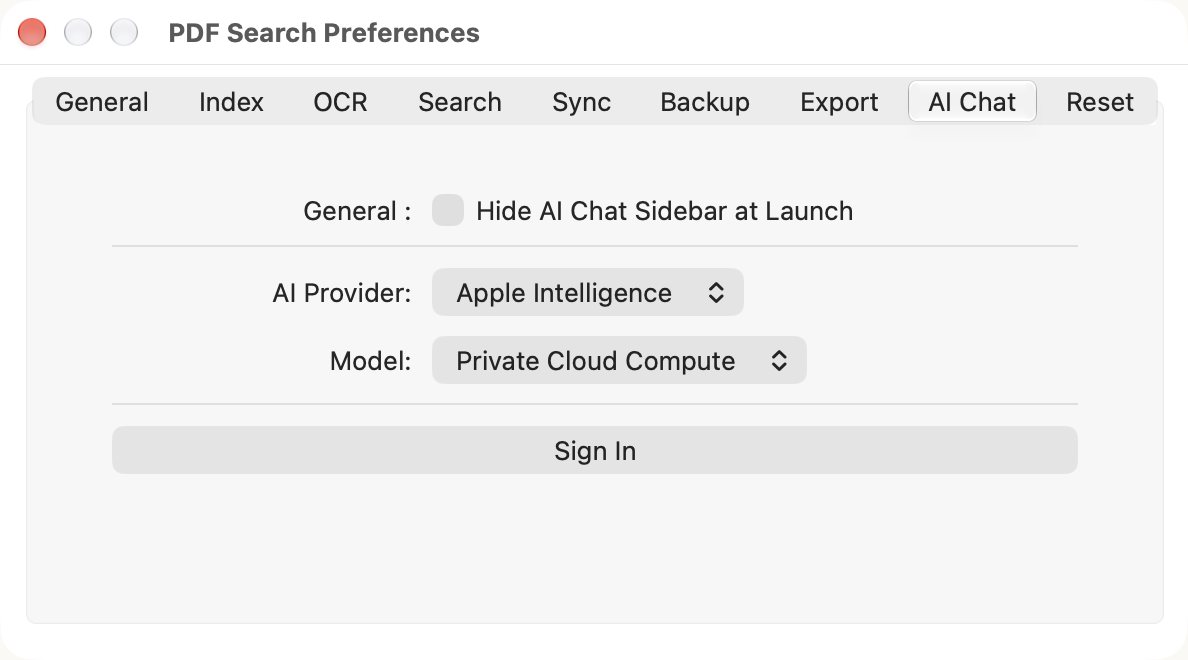
Settings › AI Chat has the same choices, the option to hide AI Chat at launch, and sign-in for the built-in AI account (which you can also delete there).
AI Chat sends the passages it reads (and any image you attach) to the engine you choose. With Apple Intelligence on device or a local model, nothing leaves your Mac. See the privacy policy.
Tags
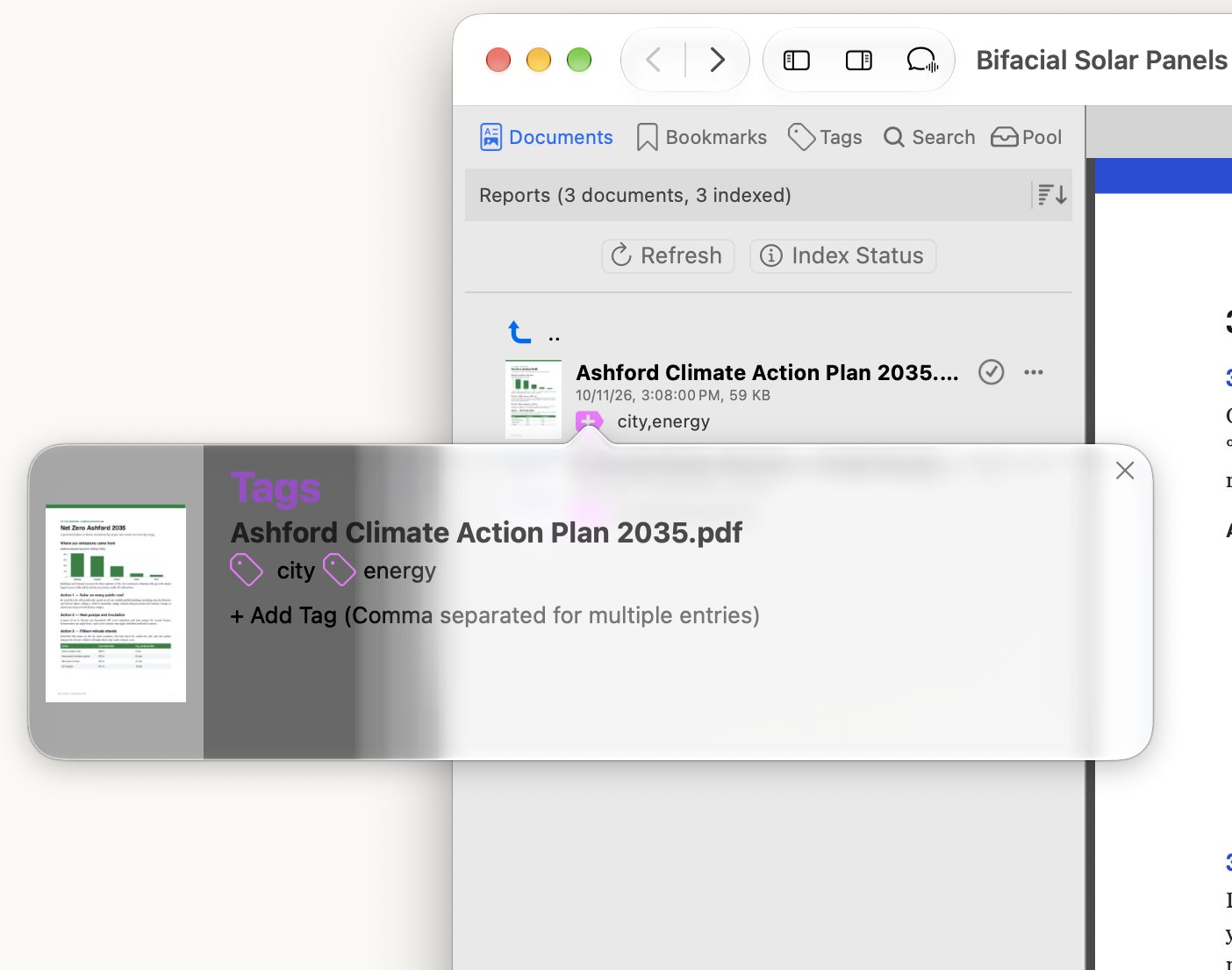
Tags group documents across folders. Tags are kept in iCloud Drive, so they are the same on your other Macs, iPhone and iPad.
Tag a document
Click the tag badge under a document in the sidebar, type one or more tags separated by commas and press Return. Click a tag in the same popover to remove it.
Browse tags
The Tags tab lists every tag with its number of documents. Open a tag to see its documents, or click its magnifier to search only them.
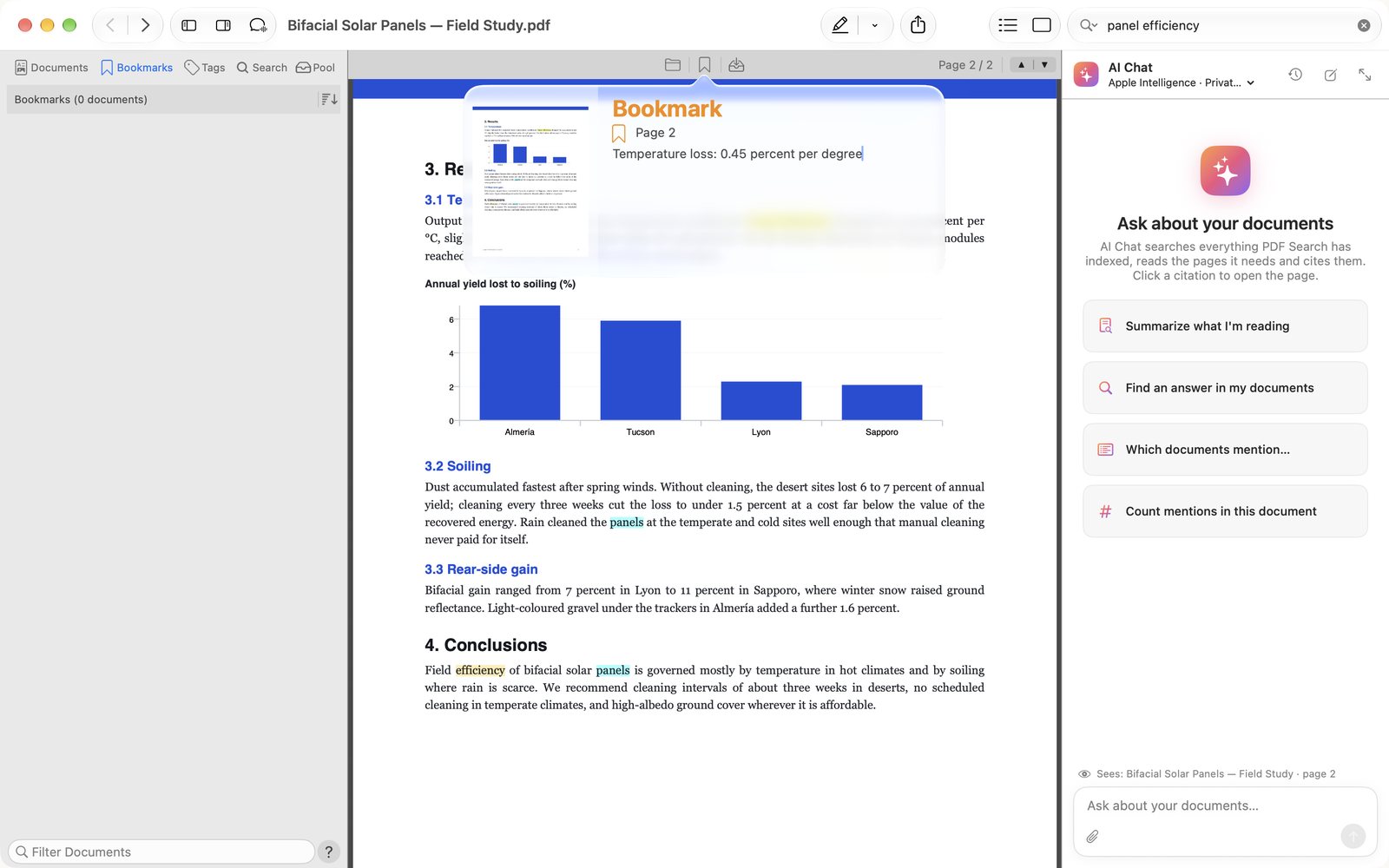
Bookmarks
Bookmark a page
Click the bookmark button above the reader to bookmark the page you are reading, and add a note. Notes are added to the page’s text, so you can search for them.
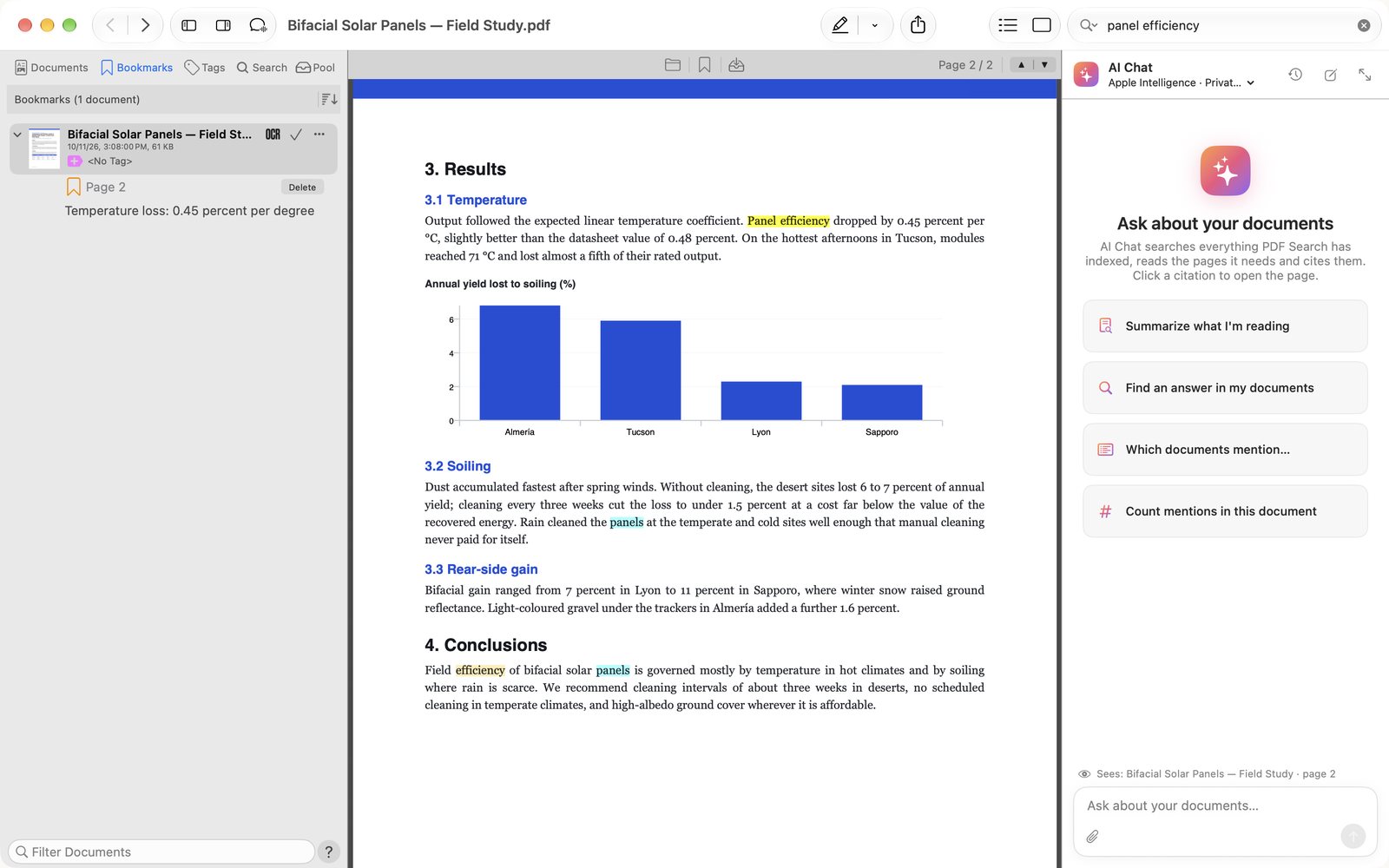
Find and delete bookmarks
The Bookmarks tab lists every bookmark, grouped by document. Click one to open the page, or click Delete to remove it.
Sync with iPhone and iPad
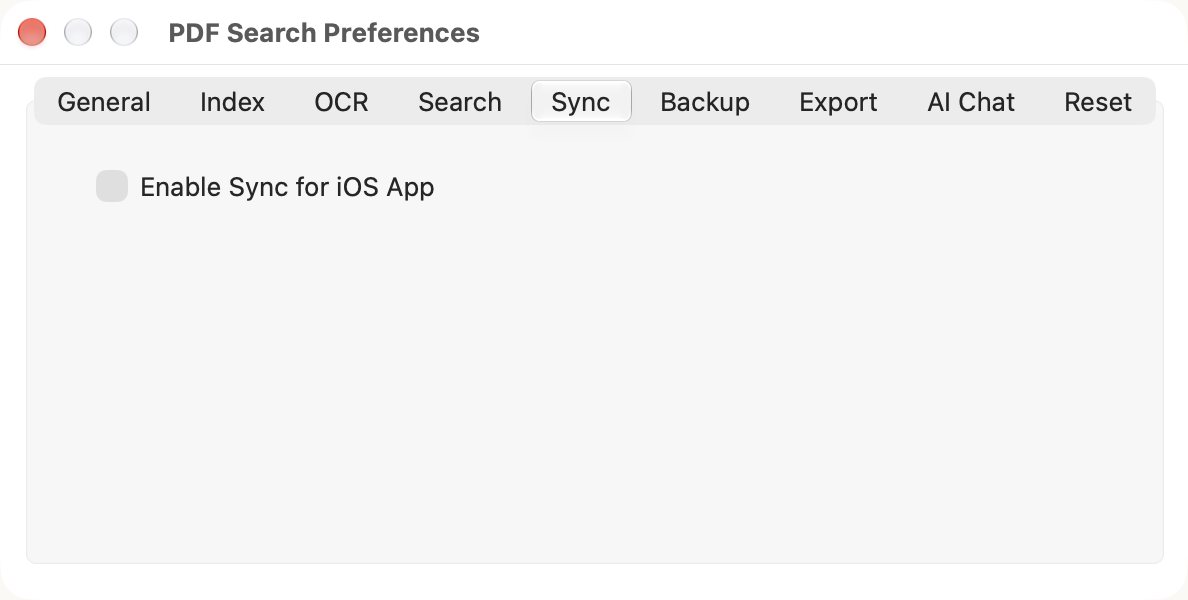
PDF Search on the Mac can send documents together with their ready-made index to PDF Search on your iPhone or iPad, so they don’t have to be indexed again. Turn on Enable Sync for iOS App in Settings › Sync, keep both devices on the same Wi-Fi network, then start the sync from the iPhone or iPad (see the iPhone & iPad manual). A sync key shown on the Mac confirms the connection.
Settings at a glance
- General — menu bar mode, launch at login, thumbnails, auto scale and animated highlights.
- Index — document types, punctuation, common words, indexing speed, database clean-up.
- OCR — recognition mode, quality and languages.
- Search — folders to search, search behaviour and the global shortcut.
- Sync — sync with PDF Search on iPhone and iPad.
- Backup — export and restore the index.
- Export — what goes into exported search results.
- AI Chat — provider, Apple Intelligence model and account.
- Reset — delete the index and all settings.
See also the manual for iPhone & iPad and the support page.