
The screenshots are from an iPhone; on iPad the same screens appear side by side.
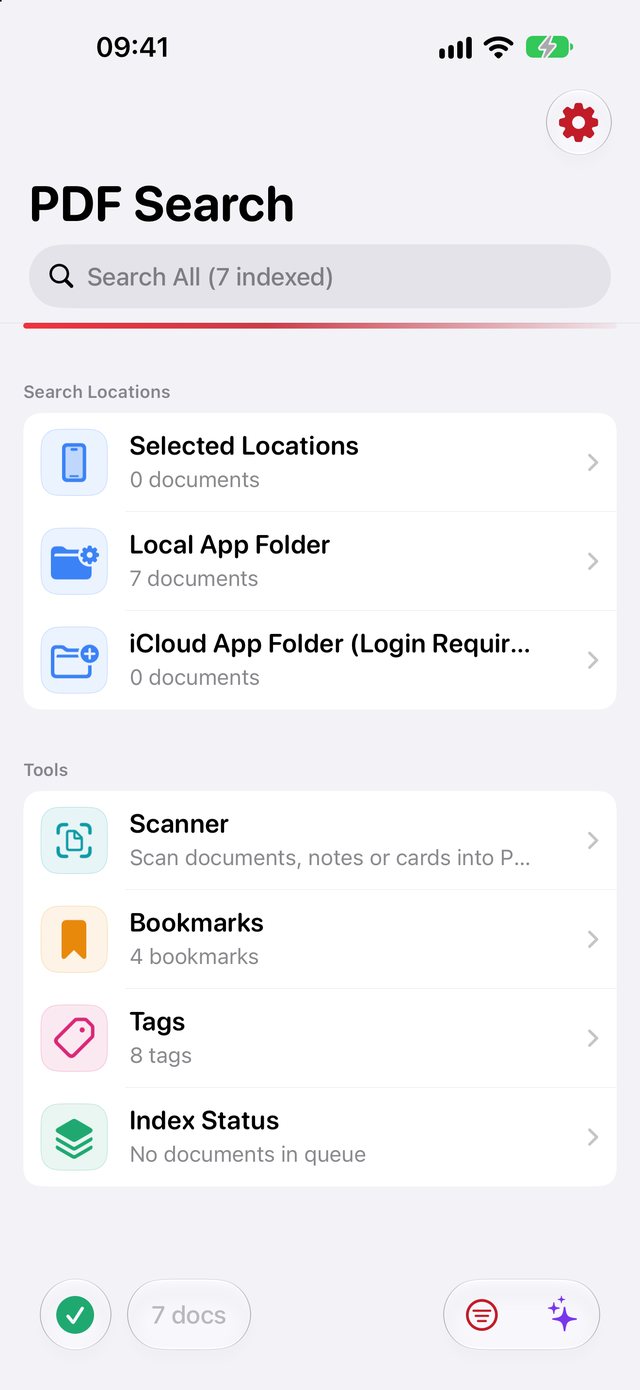
Search locations
PDF Search indexes and searches the documents in three locations, listed at the top of the home screen.
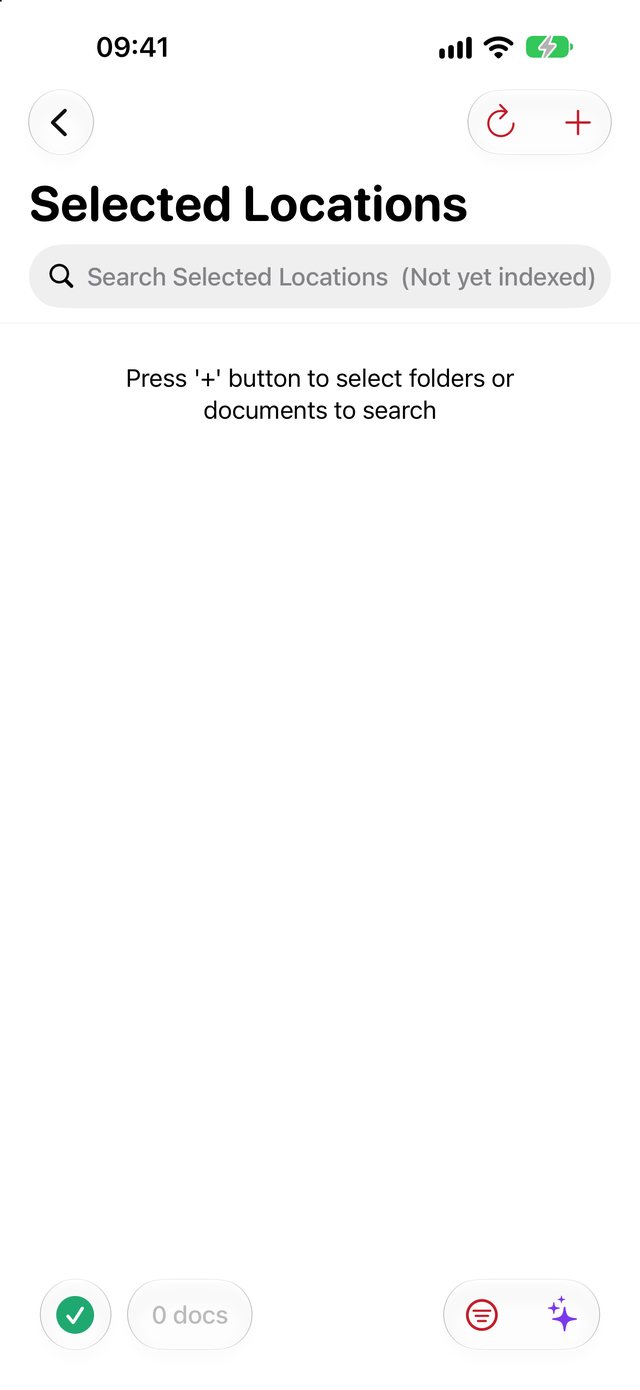
Selected Locations
Documents and folders that stay where they are — on your device, in iCloud Drive or in another app’s storage. Open Selected Locations and tap + to choose a folder or individual documents; whole folders are indexed at once.
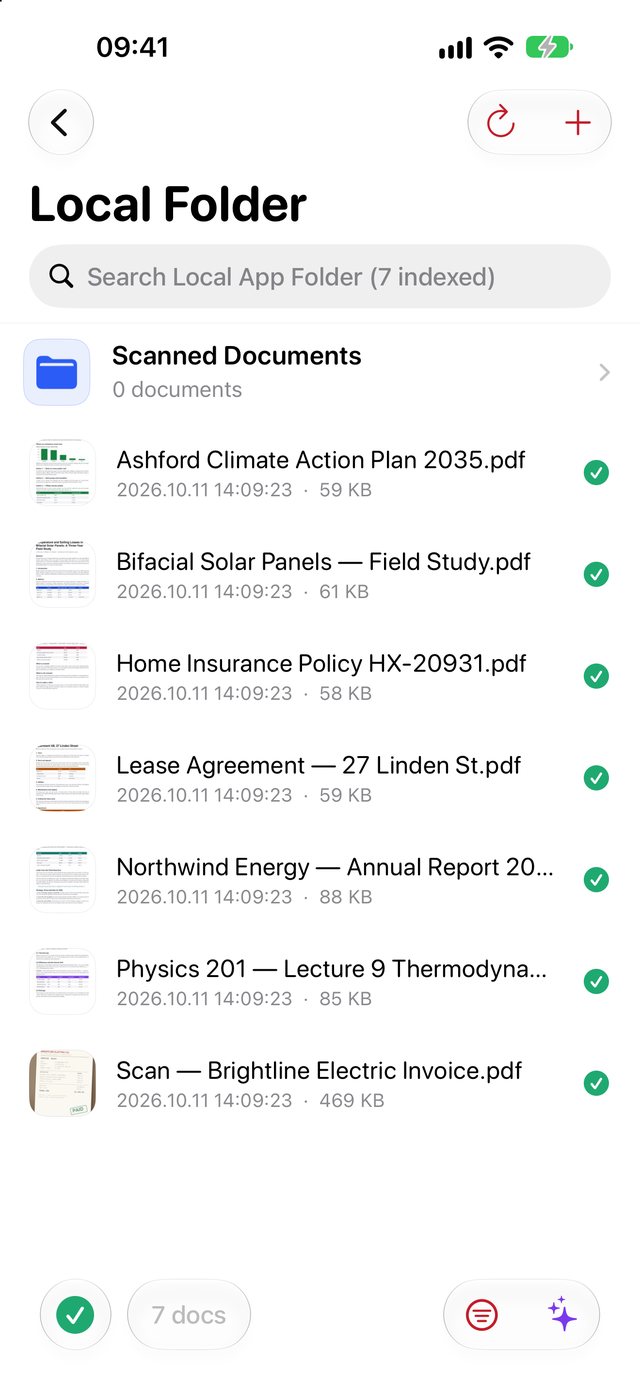
Local App Folder
PDF Search’s own folder on your iPhone or iPad. Documents copied here are indexed automatically; you can make subfolders too. Scanned documents are kept in its Scanned Documents folder.
iCloud App Folder
PDF Search’s folder in iCloud Drive, created automatically when iCloud Drive is on. Use it to share documents with PDF Search on your other devices.
Adding documents
Open the Local App Folder (or a folder inside it) and tap +:
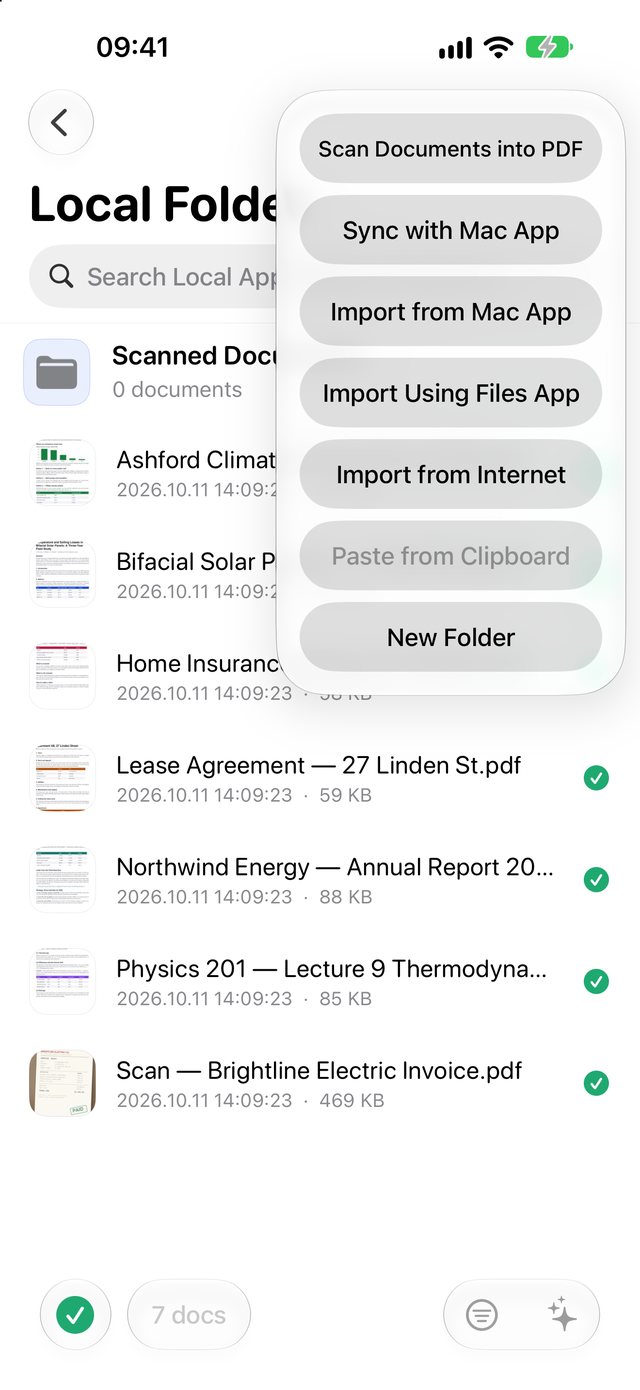
- Scan Documents into PDF — scan paper, notes and cards with the camera; text is recognized as you scan (PRO). The Scanner on the home screen does the same.
- Sync with Mac App and Import from Mac App — see below.
- Import Using Files App — copy documents from any location the Files app can reach.
- Import from Internet — search the web for PDF documents, open one and tap Import.
- Paste from Clipboard — save a copied PDF, web link or text as a document.
- New Folder.
From other apps
In Safari or any app with a share button, choose Save to PDF Search to copy the document (or, for a web page, a PDF of it) into PDF Search. In the Files app the folder is under On My iPhone / iPad › PDF Search, and on a Mac you can drag files into PDF Search in Finder when your device is connected (Files tab).
Sync with Mac App
With PDF Search on your Mac you can bring documents over with their index, so your iPhone or iPad doesn’t index them again. On the Mac turn on Settings › Sync › Enable Sync for iOS App and keep both devices on the same Wi-Fi network. Then tap + › Sync with Mac App, choose your Mac and enter the sync key it shows. If no Mac appears, PDF Search tells you what to check.
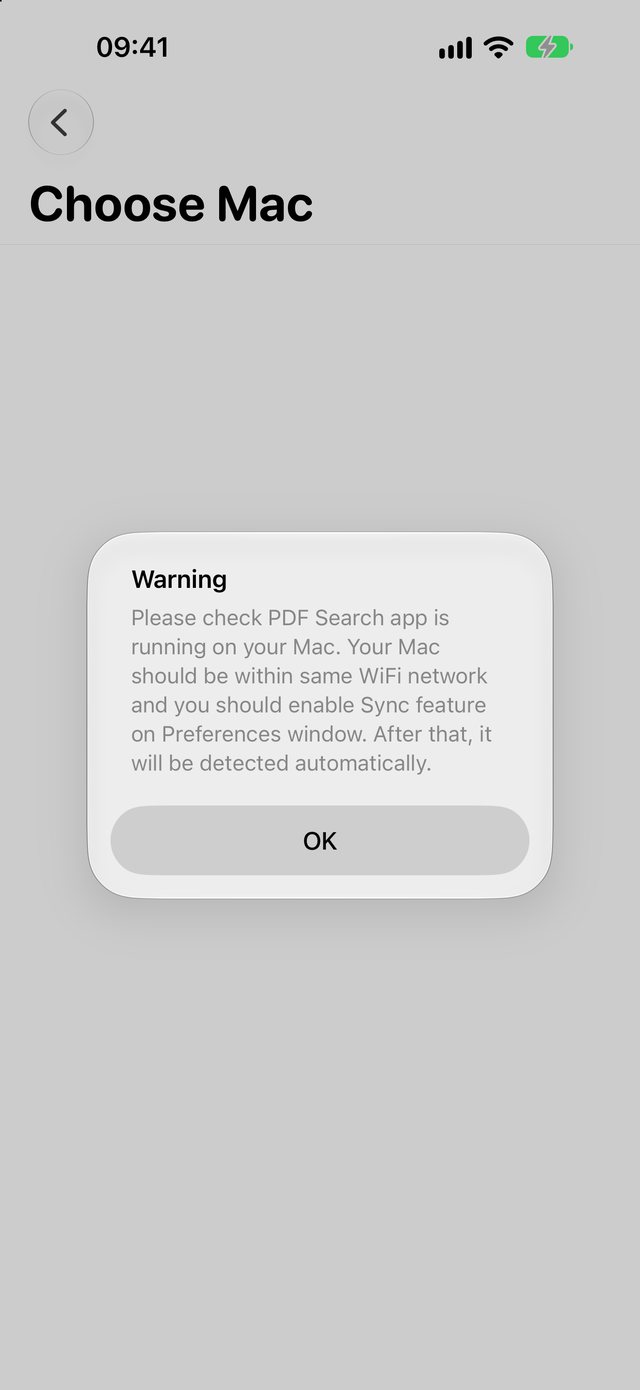
Import from Mac App instead copies only the documents you pick from the Mac’s list, without their index.
Indexing
New documents are indexed automatically; indexing uses the processor, so plug in when you add hundreds of documents. The button at the bottom left shows the state; tap it to pause or resume. Documents in iCloud that are not downloaded yet are downloaded first. Index Status on the home screen lists every document and its state.
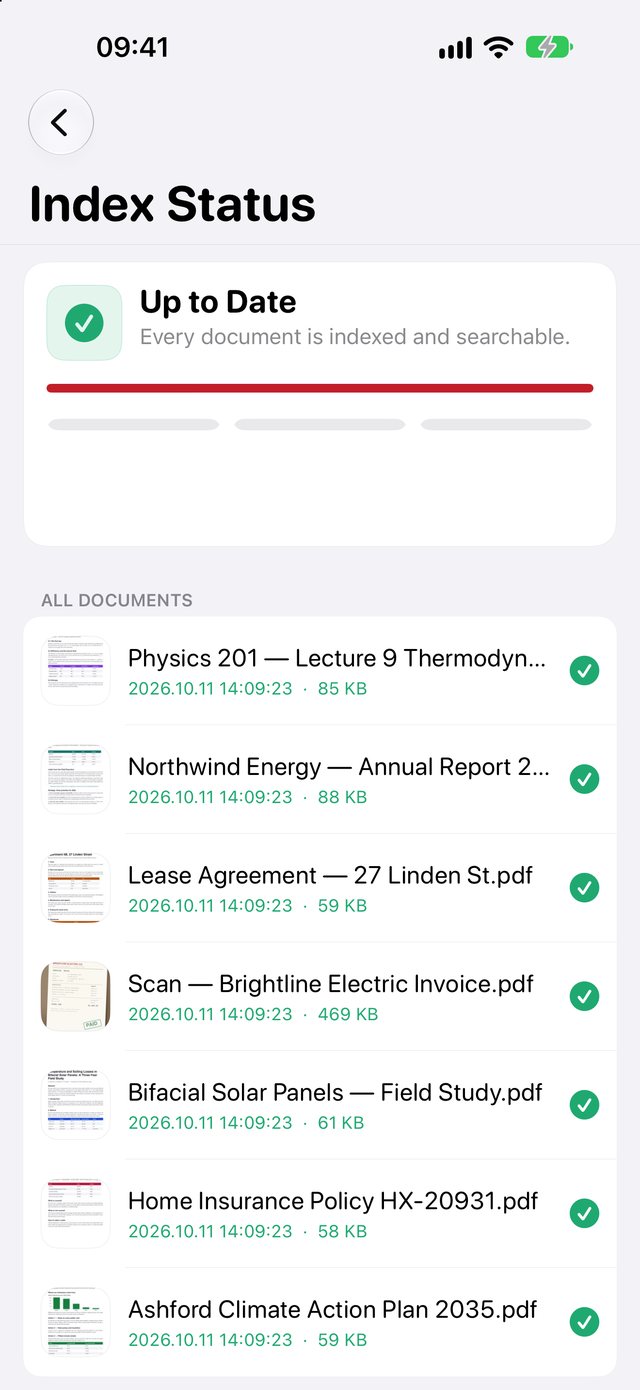
Text in scanned pages and images is recognized on the device and indexed too. Choose the mode, quality and languages in Settings › Text Recognition.
Search
Start a search
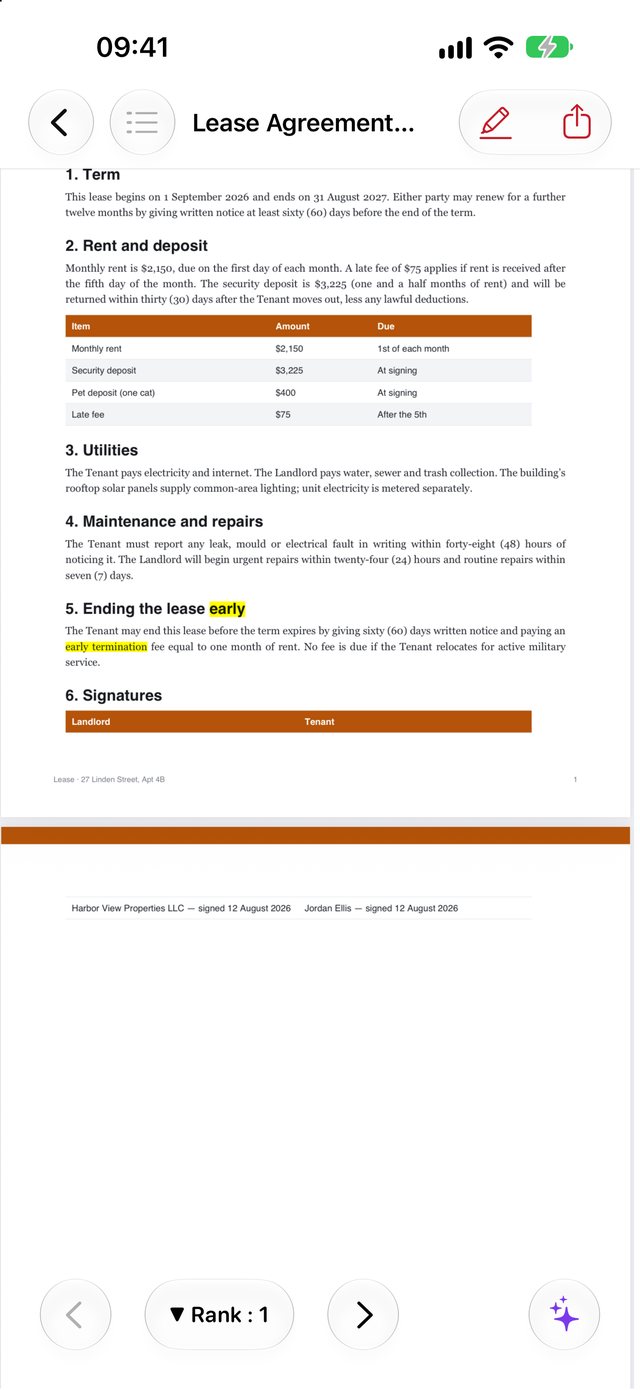
Type in the search field on the home screen (or in any folder, to search only that folder) and tap Search. PDF Search ranks every page of every document and opens the best one, with your words highlighted. Use the arrows at the bottom to go to the next or previous hit; the rank button in the middle switches between hits in all documents and hits in this document.
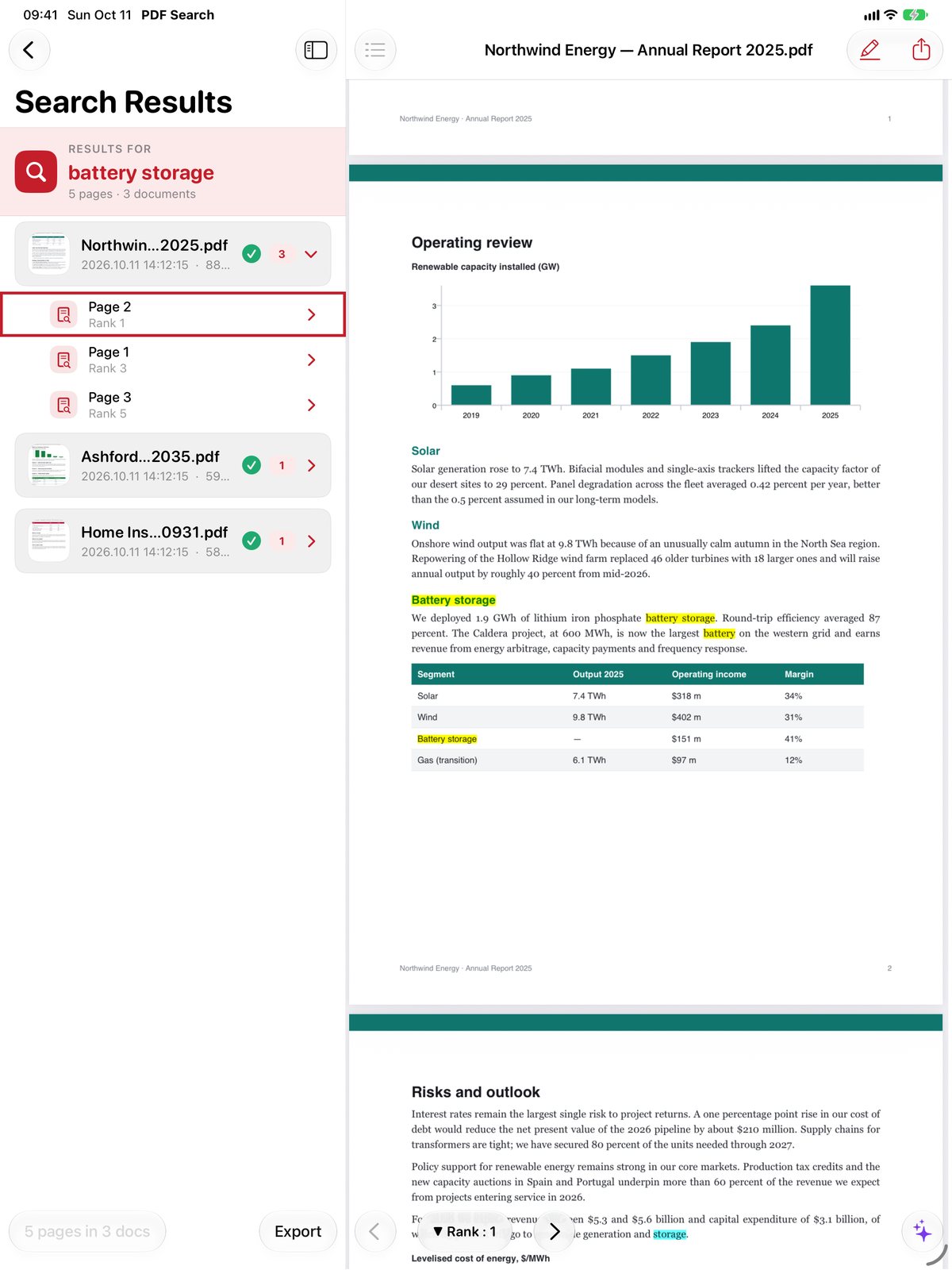
Go back to see all results, grouped by document with each matching page and its rank. On iPad they stay beside the document.
How results are ranked
- Closeness — pages where your words sit close together rank higher.
- Frequency — pages with more of your words rank higher.
- Emphasis — words in a title, in bold or in a larger font count for more.
- Date — when everything else is equal, newer documents come first.
Search patterns
| Pattern | Example | Finds |
|---|---|---|
| Quotes | "early termination" | Only pages with these words together, in this order. |
| Several words | early termination | Pages with either word; pages with both rank first. |
| Plus | lease +notice | Pages that must contain notice. |
| Minus | battery -insurance | Pages with battery but without insurance. |
| Wildcard | therm*, *ity, pr*t | Words starting with, ending with, or starting and ending with these letters. |
Narrow the search
- Folder — search from inside a folder to search only that folder.
- Filter — the filter button at the bottom right limits the list (and the search) to documents whose name or path contains your text.
- Tag — open a tag and search there to search only its documents.
Export search results
In the search results, tap Export to turn the best pages of every result into one new PDF, sorted by rank. Choose whether to include an introduction page and document dividers, how many ranks, and how many pages before and after each hit, then share the PDF.
Reading
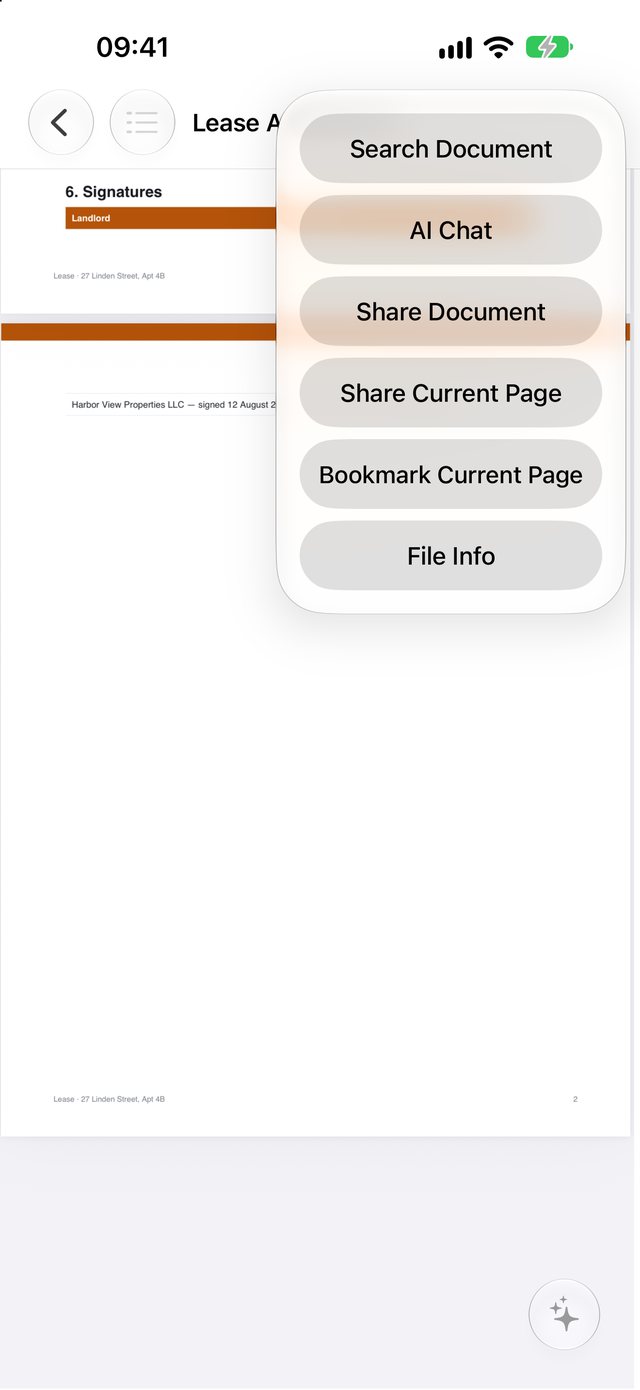
The menu button in a document has the document actions: search inside the document, AI Chat, share the document or the current page, bookmark the current page and file info. Use the pencil to highlight, underline or strike through text.
AI Chat
AI Chat answers questions about your documents with Apple Intelligence. Tap the sparkle button on the home screen to ask about your whole library, or in a document to ask about that document. Answers cite the pages they came from; tap a reference to open the page.
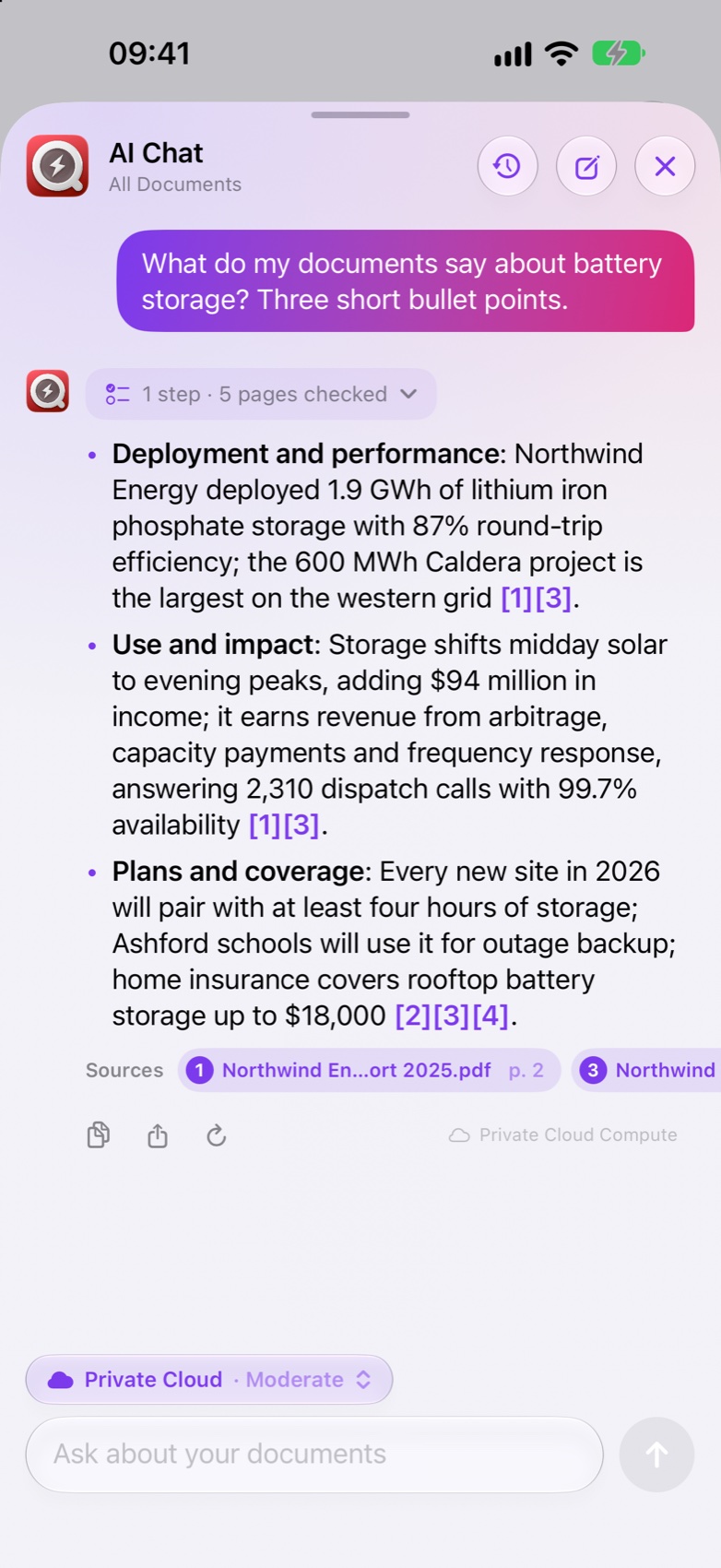
- AI Chat needs Apple Intelligence: an iPhone 15 Pro or later, or an iPad with an M-series chip, on iOS 26 or later. It is part of Pro (included in PDF Search PRO).
- On iOS 27 it uses Apple’s Private Cloud Compute by default; you can switch to On-Device to keep everything on your device.
- Conversations are saved; use the clock button for earlier ones.
Tags
Tags group documents across folders and are shared with your other devices through iCloud Drive.
Tag a document
Swipe left on a document and tap Tag, then enter one or more tags separated by commas. Tag with ‘…’ repeats the last tag you used in one tap.
Remove a tag
Edit the tags in the same box, or open the tag and swipe left on the document: Remove Tag.
Browse tags
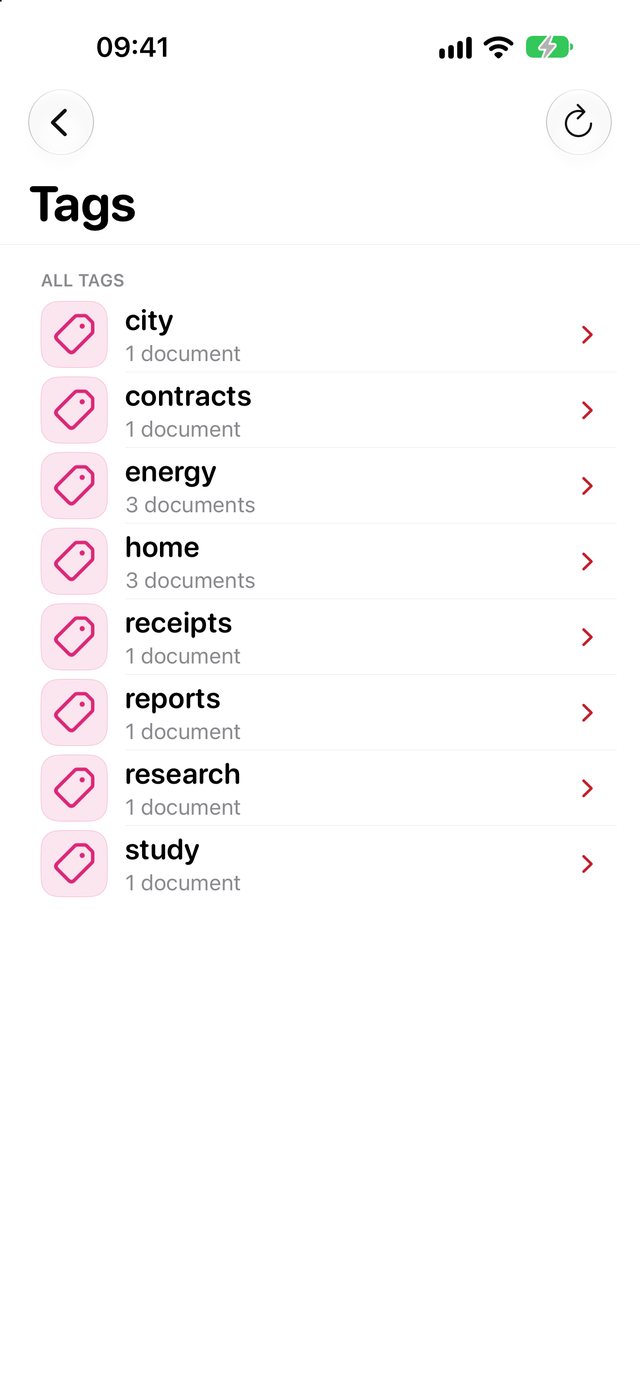
Tags on the home screen lists every tag with its number of documents.
Bookmarks
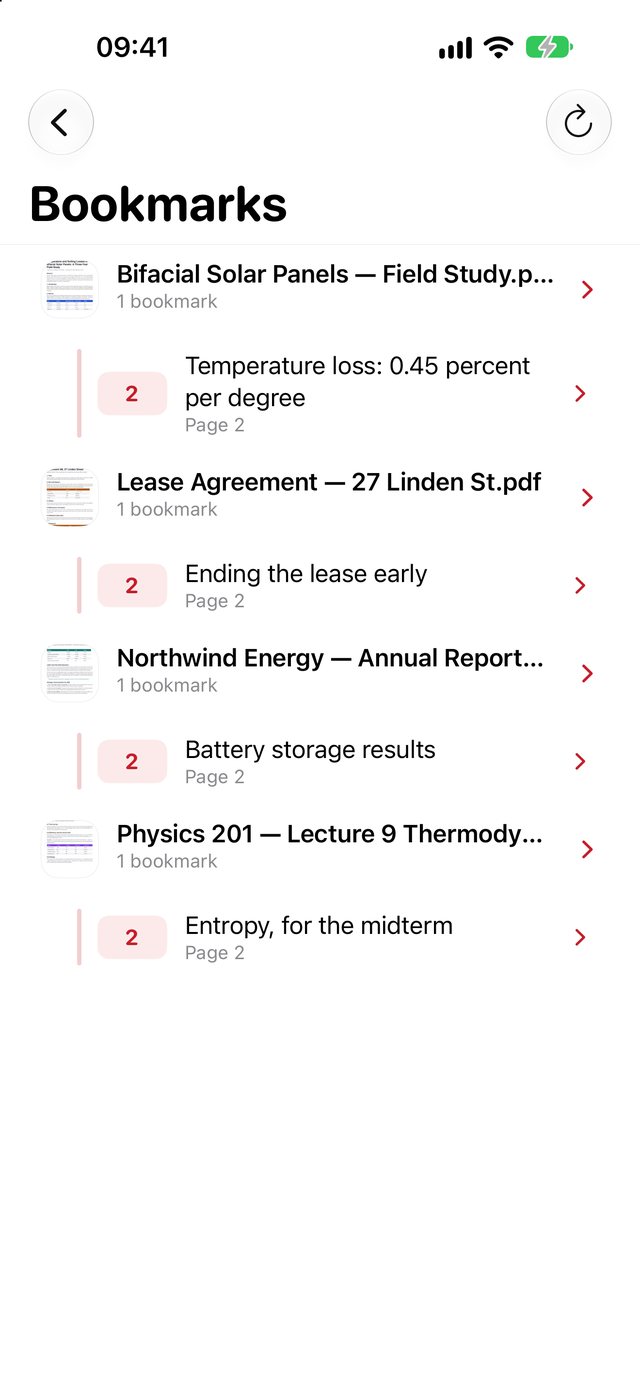
In a document, choose Bookmark Current Page from the menu and add a note; notes are searchable. Bookmarks on the home screen lists every bookmark grouped by document — tap one to open the page, swipe left to delete it.
Settings
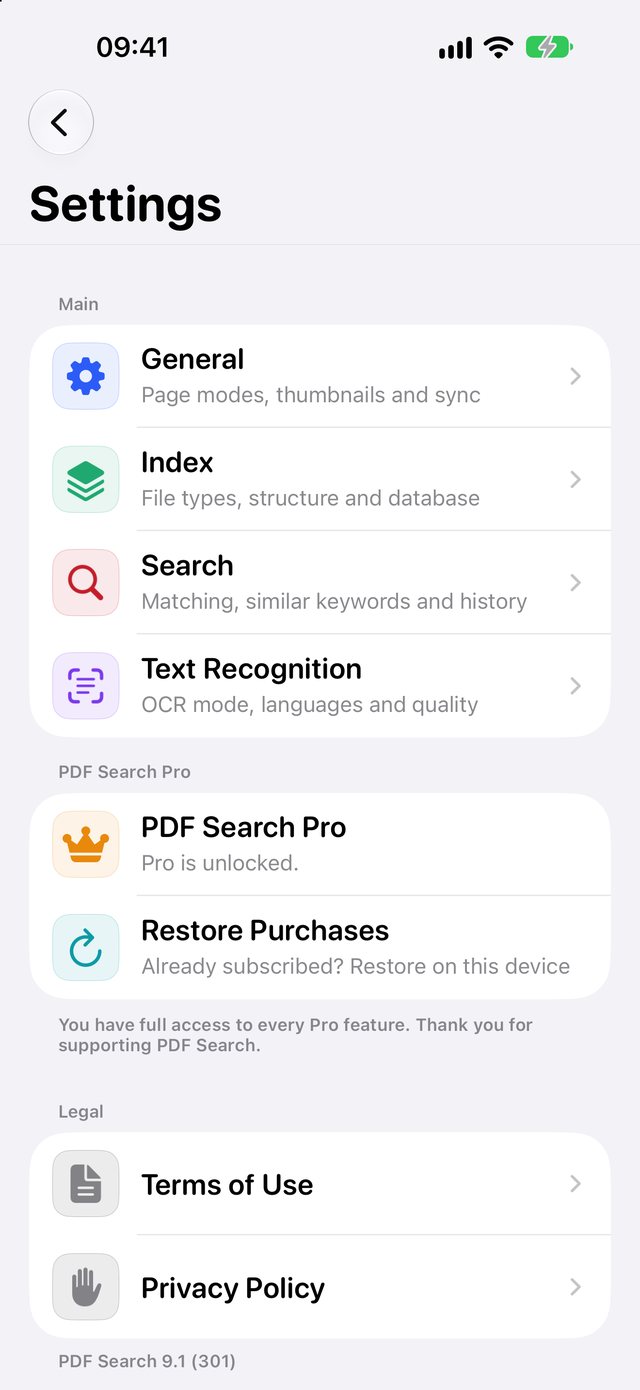
Tap the gear on the home screen: General (page modes, thumbnails and sync), Index (file types, structure and database), Search (word forms, similar words and history), Text Recognition (OCR mode, languages and quality), plus Pro, Restore Purchases and the legal pages.
See also the manual for Mac and the support page.